Print reports on the Windows app (versions 2 and 3)
Reports can be printed at any time using the ‘Print’ option found in the main menu bar, see below: Clicking on the print button pops-up the print preview page.
Note: This article is for an older version.
Navigate to the print options
Reports can be printed at any time using the ‘Print’ option found in the main menu bar, see below:
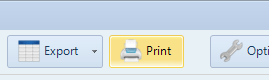
Clicking on the print button pops-up the print preview page. You can change the printer used to print a report by clicking on the ‘Page Setup’ button found in the print preview page.
The following chapters on this page show you an example of the reports you can print.
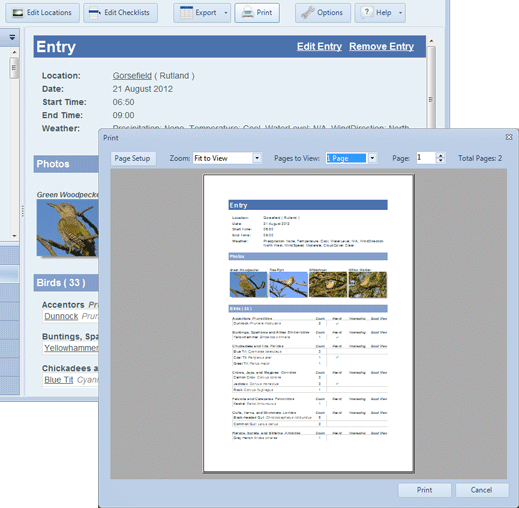
Print an entry report Print an entry report by navigating to the entry you wish to print, click on the print button to open the print preview page.
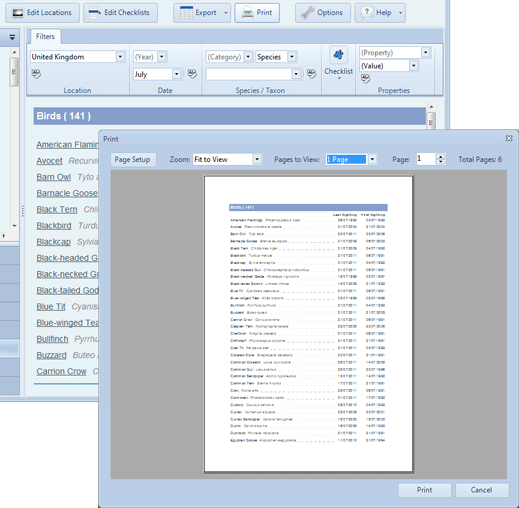
Print species lists Print a life list by navigating to the species page, setup the filters and when you are happy with the species list click on the print button to open the print preview page.
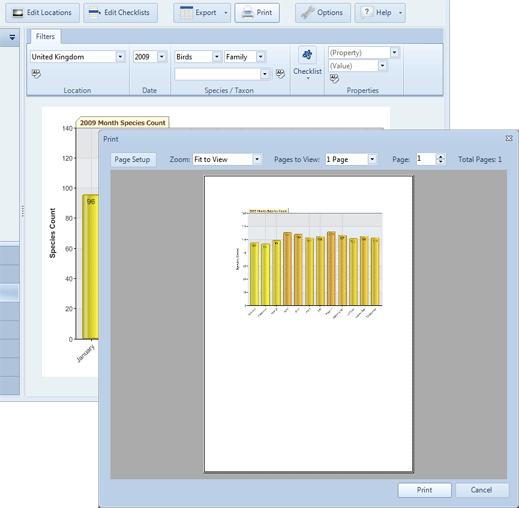
Print a graph
Print a graph report by navigating to the graphs page, select the graph you wish to print then click on the print button to open the print preview page.
Print bird/wildlife checklists
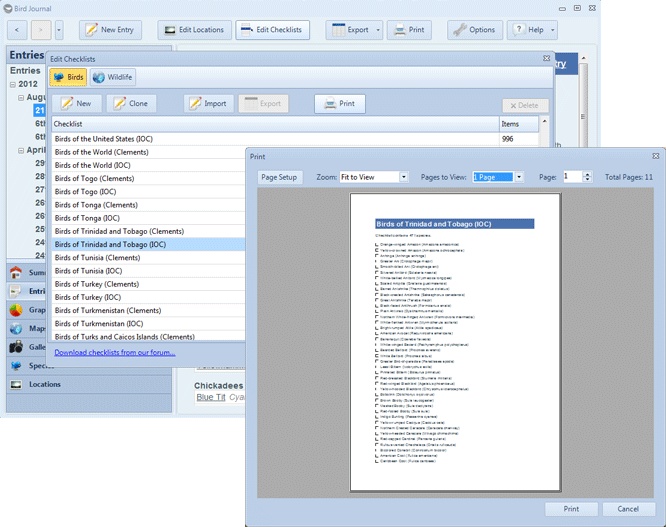
Print a bird/wildlife checklist report by navigating to the edit checklist page. The edit checklist button can be found in the main menu of the app. Select the ‘Bird’ or ‘Wildlife’ tab and then select the checklist you wish to print, click on the print button to open the print preview page.