Add photos, sounds and documents
How to attach photos, sound recordings and PDFs to an entry or to an individual observation, and where to find them afterwards.
Updated
Photos, sound recordings and PDF documents can be added on every device you use Bird Journal on — Windows, Mac, iPhone, iPad, Android and the web app. Some browsers cannot convert a recording into the form Bird Journal keeps; if yours says so, add the sound from the app on your phone or computer and it will sync across.
They are stored inside your journal rather than merely pointed at, so moving or deleting the original file does not leave you with a gap where a bird used to be. They are uploaded to our systems along with everything else, for sync and for backup; while that is happening the sync icon bounces. On a computer, hovering over it tells you how many are still to go.
- Photos — JPEG files of any size. They are resized on the way in to a maximum of 1,280 pixels on the longest side, which is enough to look good on a high-resolution screen without your journal growing out of hand.
- Sounds — M4A, MP3, WAV and FLAC recordings, up to 10 minutes long and 25 MB. Each is shown as a sonogram, and plays in Bird Journal.
- Documents — PDF files up to 25 MB, such as a survey form or a trip report.
Where they go
There are two places a file can go, and the difference is worth a moment’s thought:
- On the entry — habitat, landscape, the view from the hide, the trip report, something you could not identify.
- On an observation — a photo or recording of that particular bird. Doing it this way means you can later find every photo or recording you have of a species.
On a computer
In the New Entry or Edit Entry screen, click the Media field — on the entry, or on the selected observation. The media picker opens.
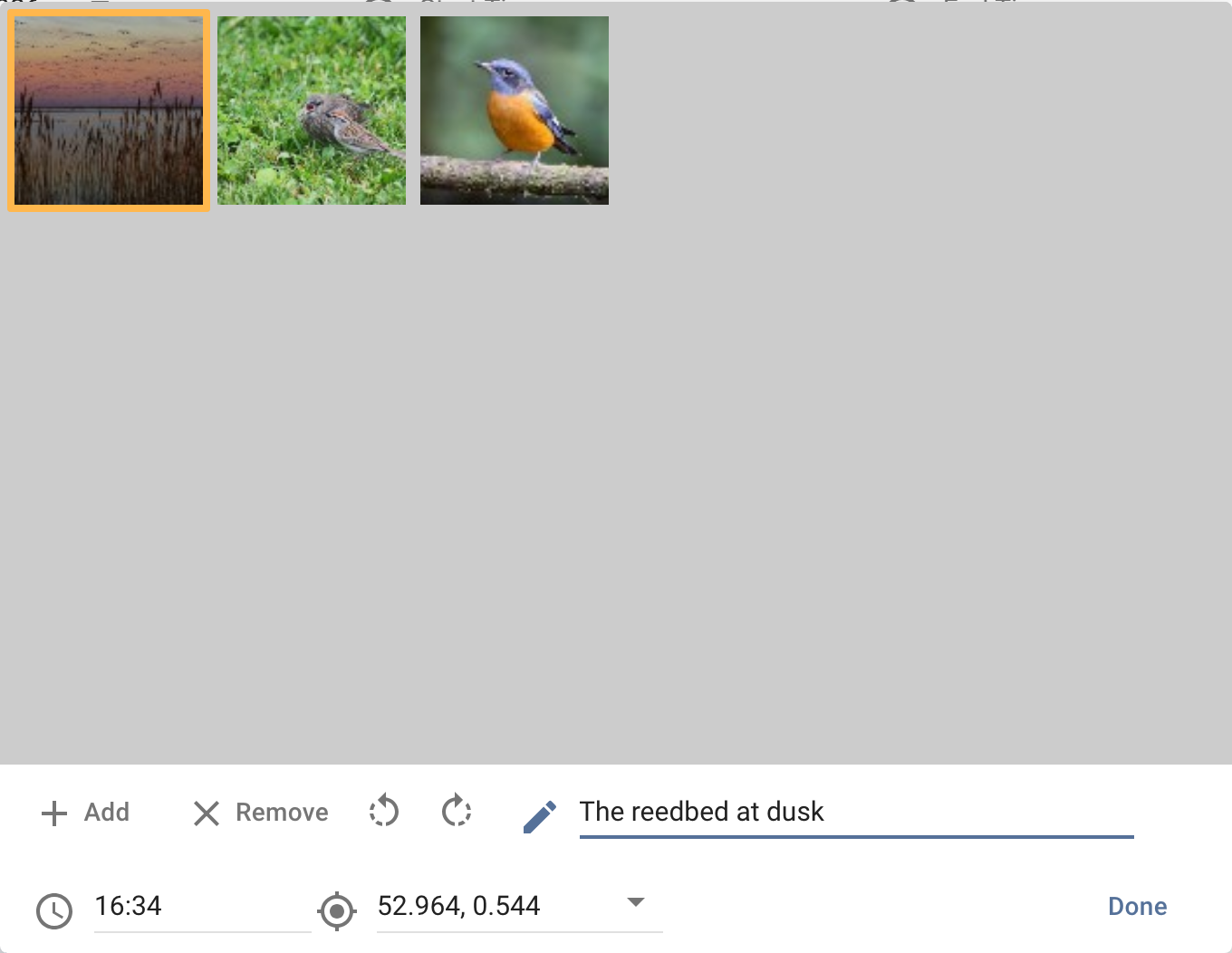
Press Add to choose files — you can pick several at once — or drag them into the picker. Where a photo carries them, the time and position are read from the file and filled in for you. You can set them by hand as well, and add a Caption, which is shown with the photo.
Remove takes a file out of Bird Journal; it does not touch the file on your disk. The two rotate buttons turn a photo that came in the wrong way round, and Trim cuts a recording down to the part you want.
On a phone or tablet
In the input screen, the Media row sits on the entry and on each observation.
- The camera button beside it takes a photo there and then, and the microphone records a sound.
- Tap the row itself to open your media, then Choose photos to add them from the photo library, or Choose a file for a sound file or a PDF.
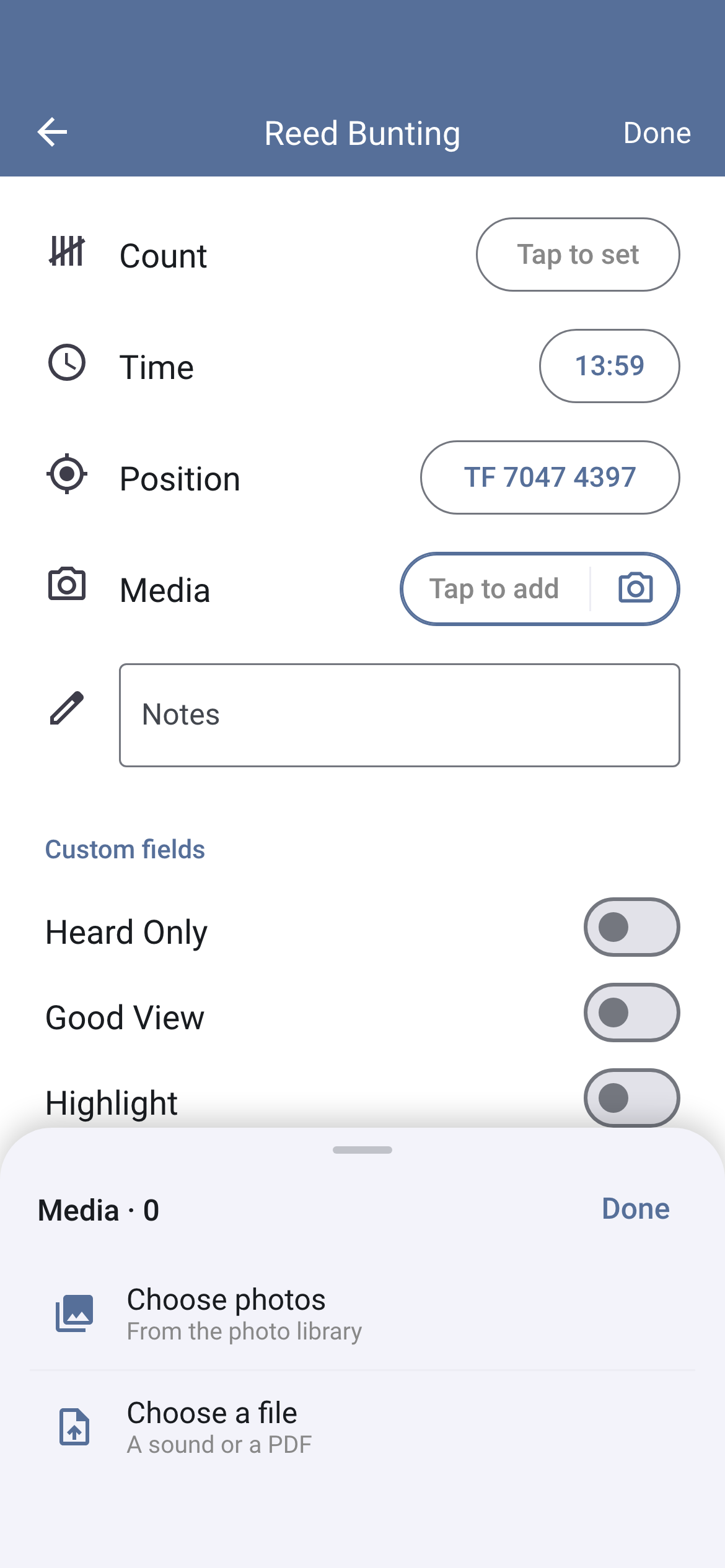
Tap a photo or recording there to add a caption, rotate it, trim it or delete it.
Looking at them
The Gallery shows every photo and recording in your journal, and the filter bar narrows it like any other screen. Tap one to open it full size, and swipe or use the arrows to move between them.
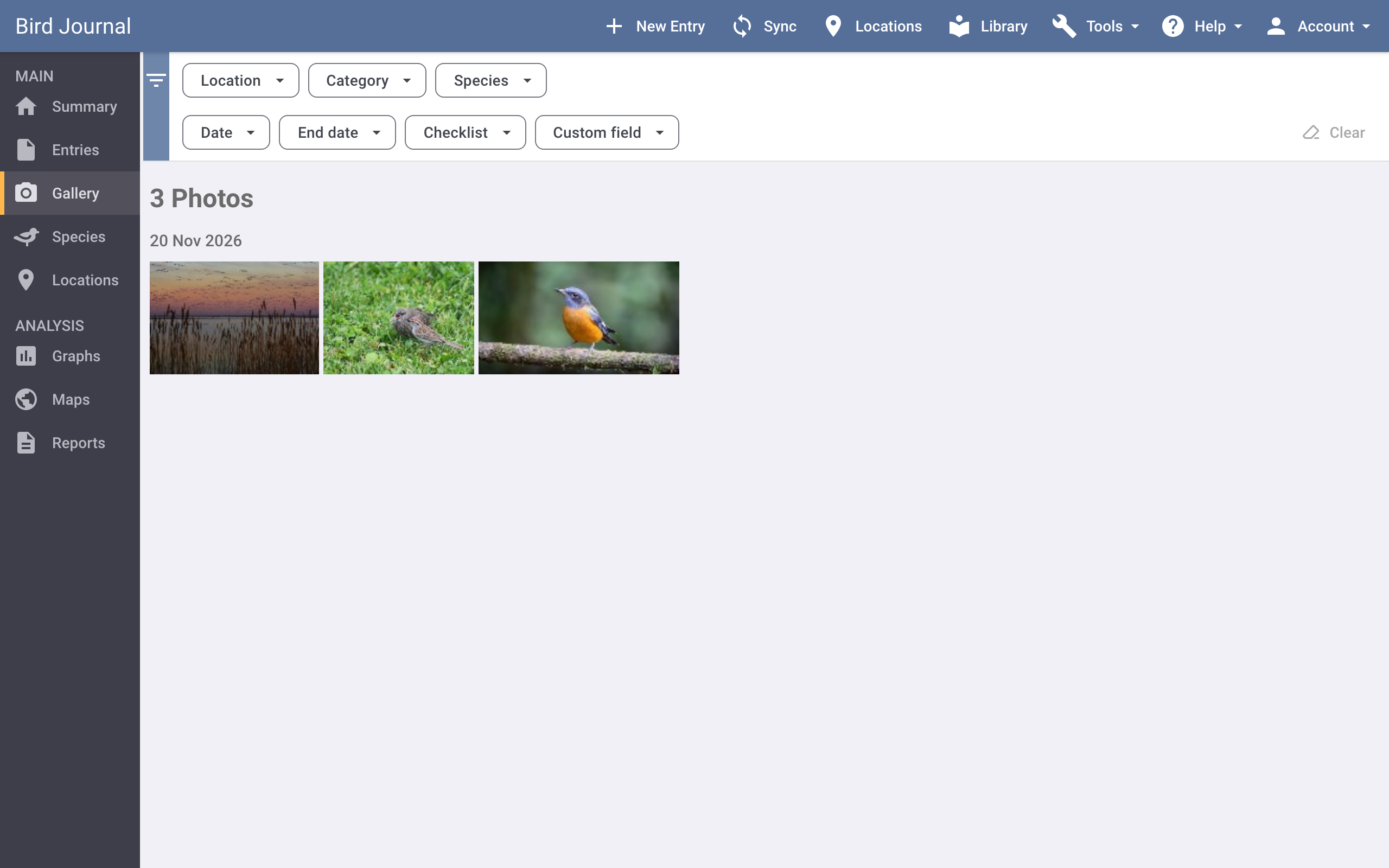
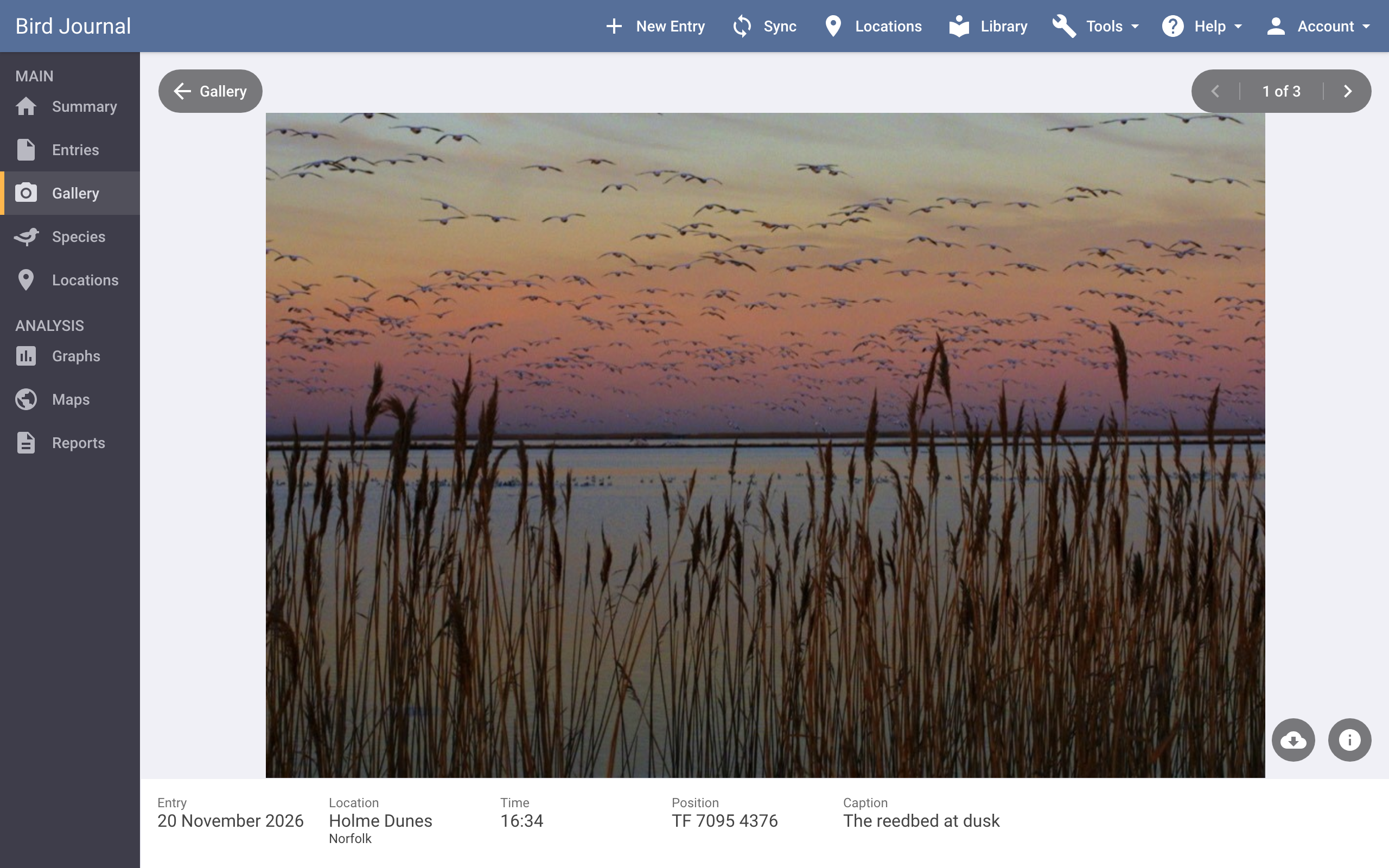
An entry’s, species’ or location’s photos open over that page in the same way, and back returns you to it. Show in Gallery takes you to the Gallery with that page’s photos.
From the viewer, Share (in the iPhone, iPad and Android apps) or Download (everywhere else) gives you the file itself, at the size it is stored. On Android, the Mac and Windows, Open in another app hands a recording to another app as well.
A PDF is listed on its entry’s page; tap it to open it in your device’s own viewer.
Keeping them to hand
Files are downloaded as you look at them, so a device that has just been signed in holds very few of them. If you are heading somewhere without a signal and want them all with you, open Tools ▸ Download All Media and Bird Journal will fetch the lot so they can be viewed offline. It can take a while if you have a great many. This is available everywhere except the web app.