
Export
How to get your records back out of Bird Journal — as a file for eBird or BirdTrack, as a species list, or as a report.
Updated
Your records are yours, and there are three ways to take them out: as records in a format another system understands, as a species list, or as a report. All of it works on every device — Windows, Mac, iPhone, iPad, Android and the web app — and it covers everything in your account, wherever it was recorded.
Exporting records
Open Tools ▸ Export Records. On a phone, Tools is in the ⋮ menu at the top right.
Choose the Format: Bird Journal, eBird or BirdTrack. If the one you want is not listed, press More formats in the Library; install it there and Export chooses it for you.
Then set the Range. All entries does what it says; Since last export covers only what you have added since you last exported in that format on this device. The second is what makes keeping eBird or BirdTrack up to date painless — export as often as you like and never think about which entries you have already sent. Since last export is greyed out until you have exported in that format once.
Beneath that is a list of your entries, with species counts for each wildlife category. Use the filters and the tick boxes — the one on the list’s heading ticks them all — to choose exactly what goes.
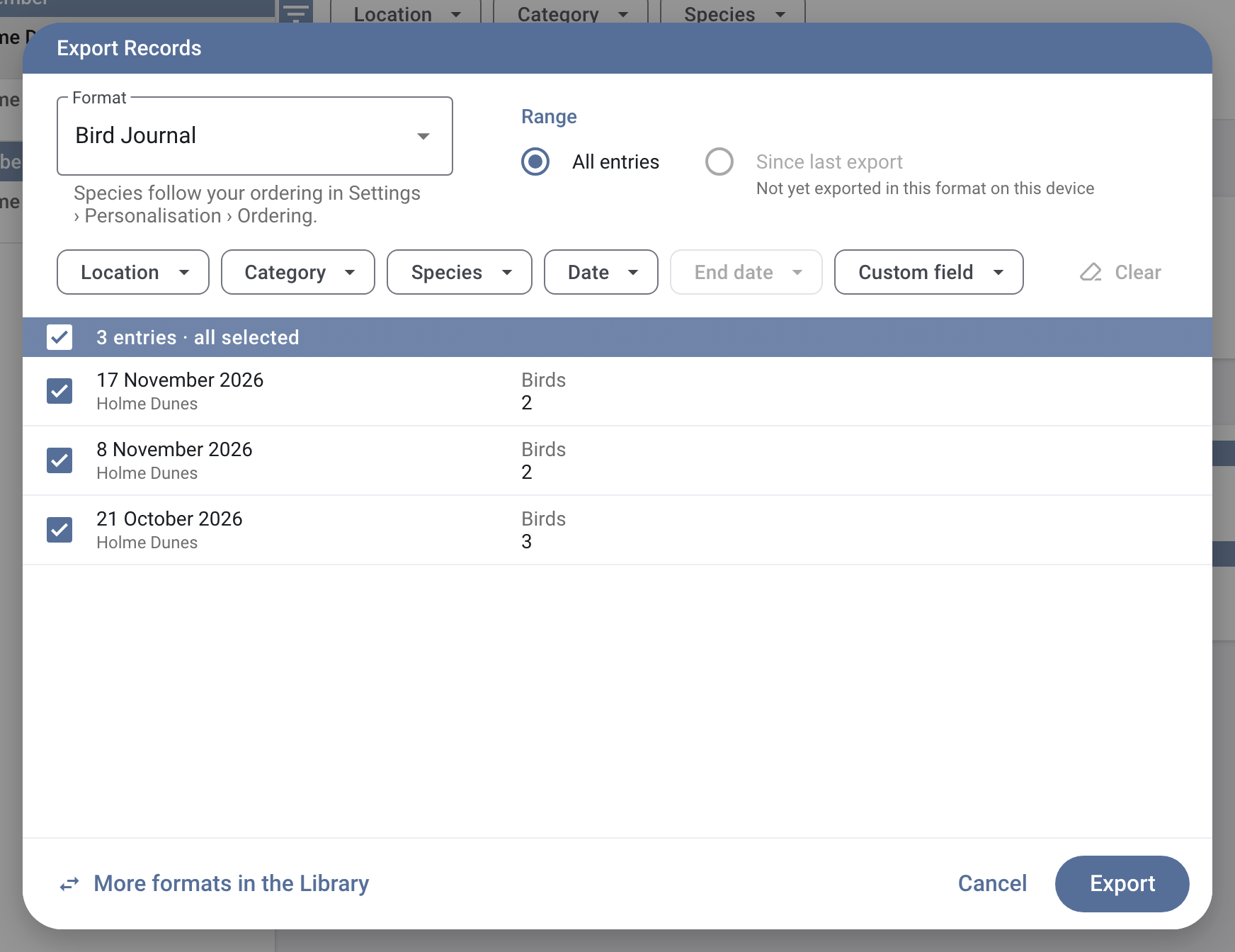
Press Export. The file is prepared and then handed to you in whichever way suits the device:
- Windows and Mac save it to your Downloads folder, and offer a link to show it there.
- iPhone, iPad and Android open the share sheet, so you can send it wherever you want it.
- The web app downloads it through your browser.
An eBird export ends with Your eBird file is ready, which says where the file went and how to add it to eBird. Open eBird takes you straight to eBird’s import page.
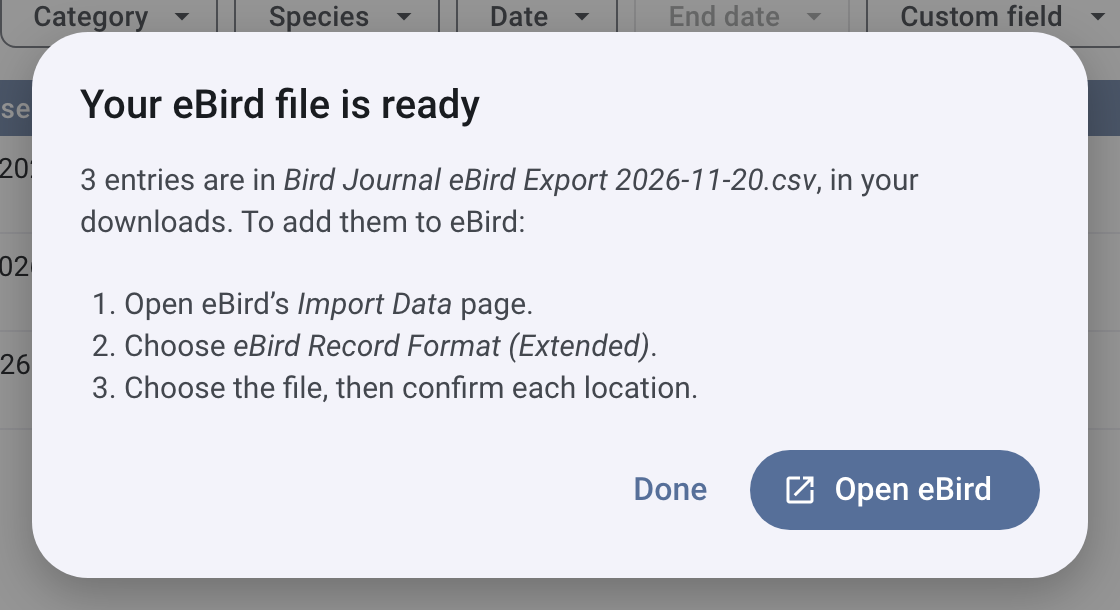
Two things worth knowing about the eBird and BirdTrack formats. Both cover birds only. And where an entry holds more than one observation of the same species, they are combined into one — those systems expect a single row per species per visit.
BirdTrack also needs a position for every location you have added yourself. If one has none, Bird Journal lists the locations to fix instead of producing a file. Add a position to each in Locations — see Manage your locations — and export again. Built-in locations — countries, counties and so on — are exempt, so this only ever concerns your own.
Sending it on
To BirdTrack
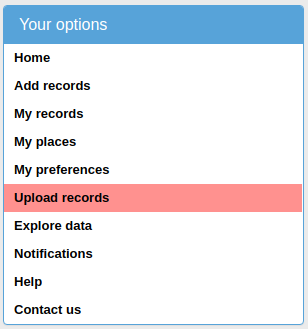
In BirdTrack, open the menu and choose Upload records, then browse for the file and follow the steps.
To eBird
On eBird’s Import Data page, choose eBird Record Format (Extended), choose the file, then confirm each location. Cornell’s own article covers this in detail: uploading spreadsheet data to eBird.
Note that eBird’s import accepts only the Incidental, Historical, Stationary, Travelling and Area protocols, and a number of fields you can enter on eBird directly cannot be set through an import at all. Those are eBird’s limits rather than ours, so requests for them are best sent to Cornell.
Exporting a species list
On the Species screen, Tools ▸ Export Species List saves the list as it currently stands — filters and all — so it is an easy way to get, say, everything you recorded in one county in one year.
Exporting a report
With a report open, choose Tools ▸ Export. It takes a moment to prepare, then arrives the same way an export of records does. Exporting reports is part of Bird Journal Premium. The Checklist report is the one exception — it cannot be exported, and Export is greyed out while it is open.