
Filter your records
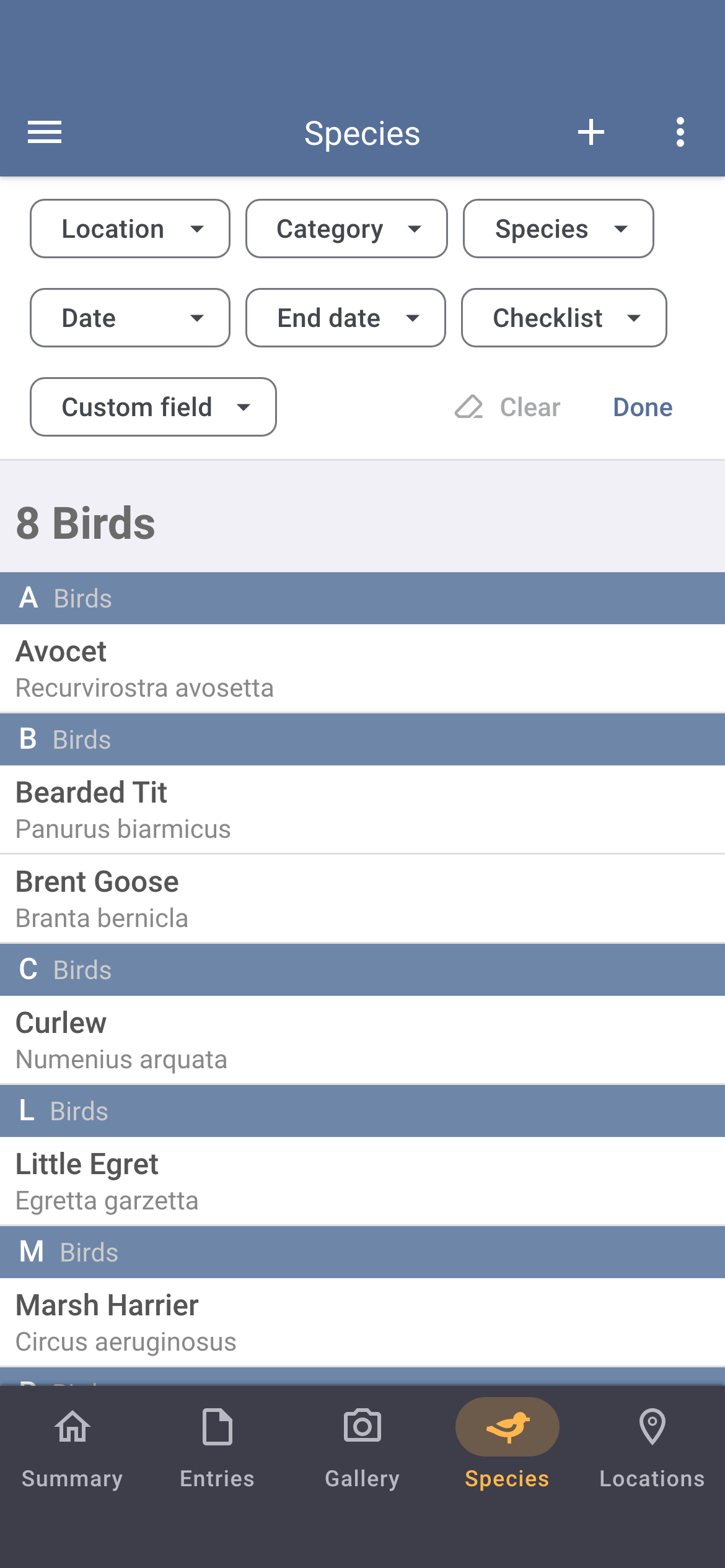
The filter bar sits above every list, graph, map and report, on every device, and narrows all of them the same way. Here is what each filter does.
Updated
Filters are how you find your way around a journal that has grown large. The same filter bar sits above your entries, your species, the graphs, the maps and the reports, on a computer, a phone or a tablet, so whatever you are looking at, you narrow it the same way.
The bar is a row of chips — Location, Date, End date, Category, Species, Checklist and Custom field.

Tap or click one to open its picker; once set, the chip shows what it is set to. A picker’s first row — Any location, Any date and so on — clears that filter again, and Clear at the end of the bar clears them all. Some screens need a value to show anything — a graph needs a category, say — and for those Clear puts the starting choice back rather than leaving the field empty.
In a narrower window the bar shows as a single Filters row summing up what is set; tap it to open the chips, and Done to fold it away again. On a phone the pickers rise from the bottom of the screen, and Location, Species and Checklist open full screen so there is room to search. The bar tucks itself away as you scroll down the results and comes back as you scroll up.
Filters narrow each other. Set the year to 2005 and the location filter offers only places you visited in 2005. It gets you to what you want in fewer steps, and it means you rarely set a filter only to be told there are no matches.
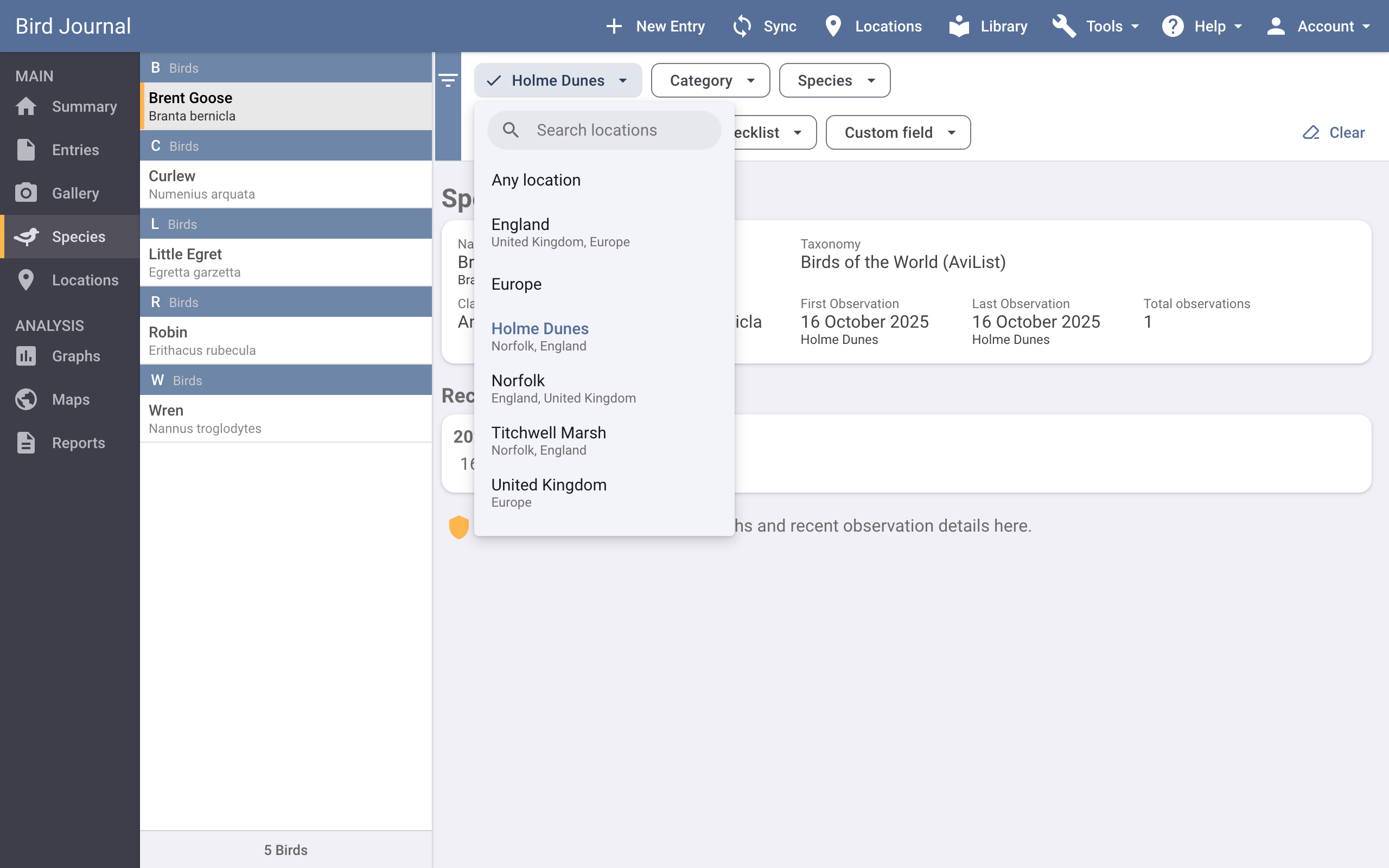
Location
Type to search your locations. Partial letters are enough: M H finds locations whose words begin with M and H.
Date
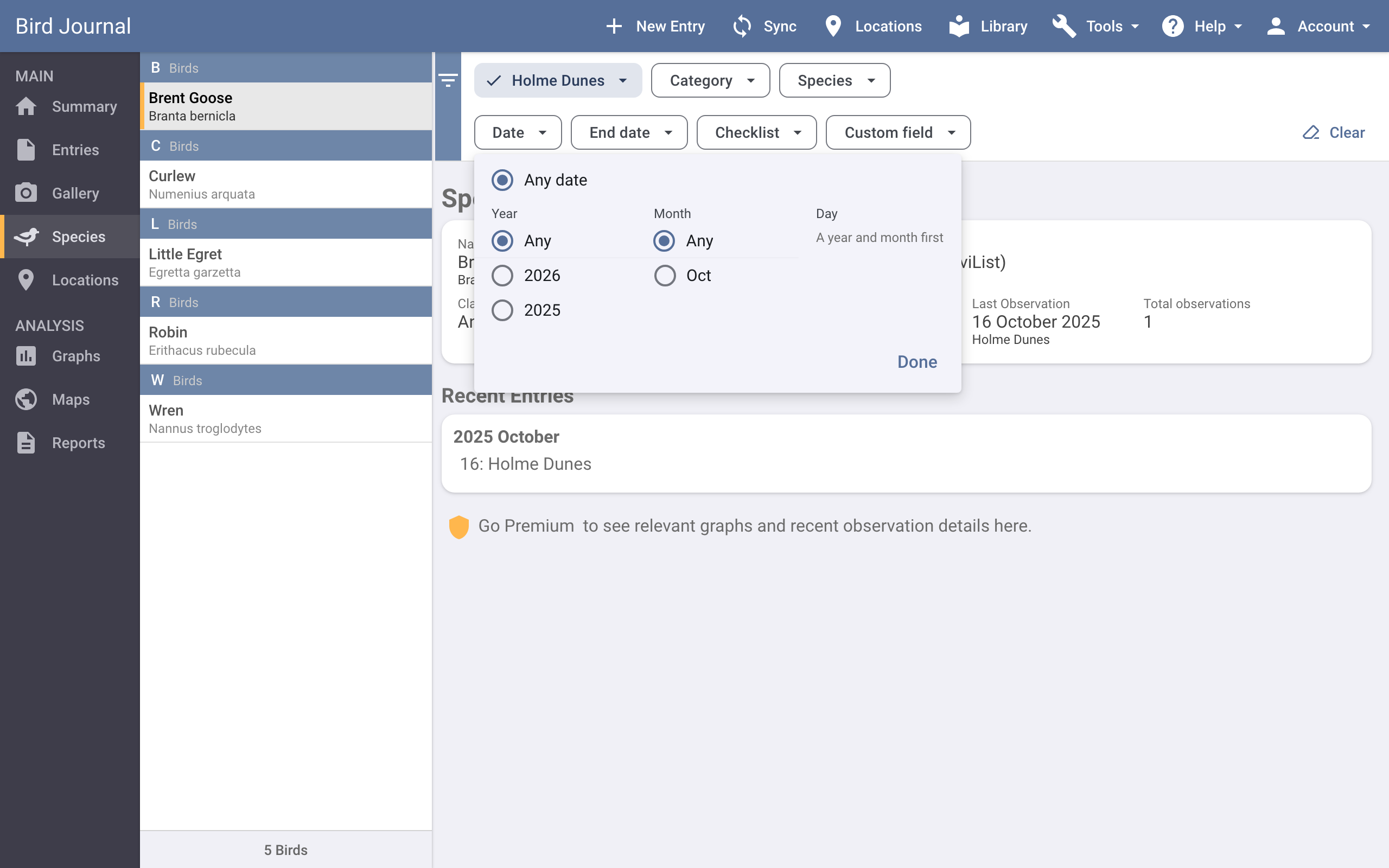
Filter by year, month and day. Year on its own is fine, as is year and month, or a month on its own for every May you have recorded; a day can only be chosen once a year and month are set. Only dates you actually have observations for can be chosen.
End date
Once a date is set you can add an end date to make it a range. The end date is included in the range, and you can span year to year, month to month or day to day.
Category and species
Category covers birds and the other wildlife you might record — butterflies, dragonflies and so on.
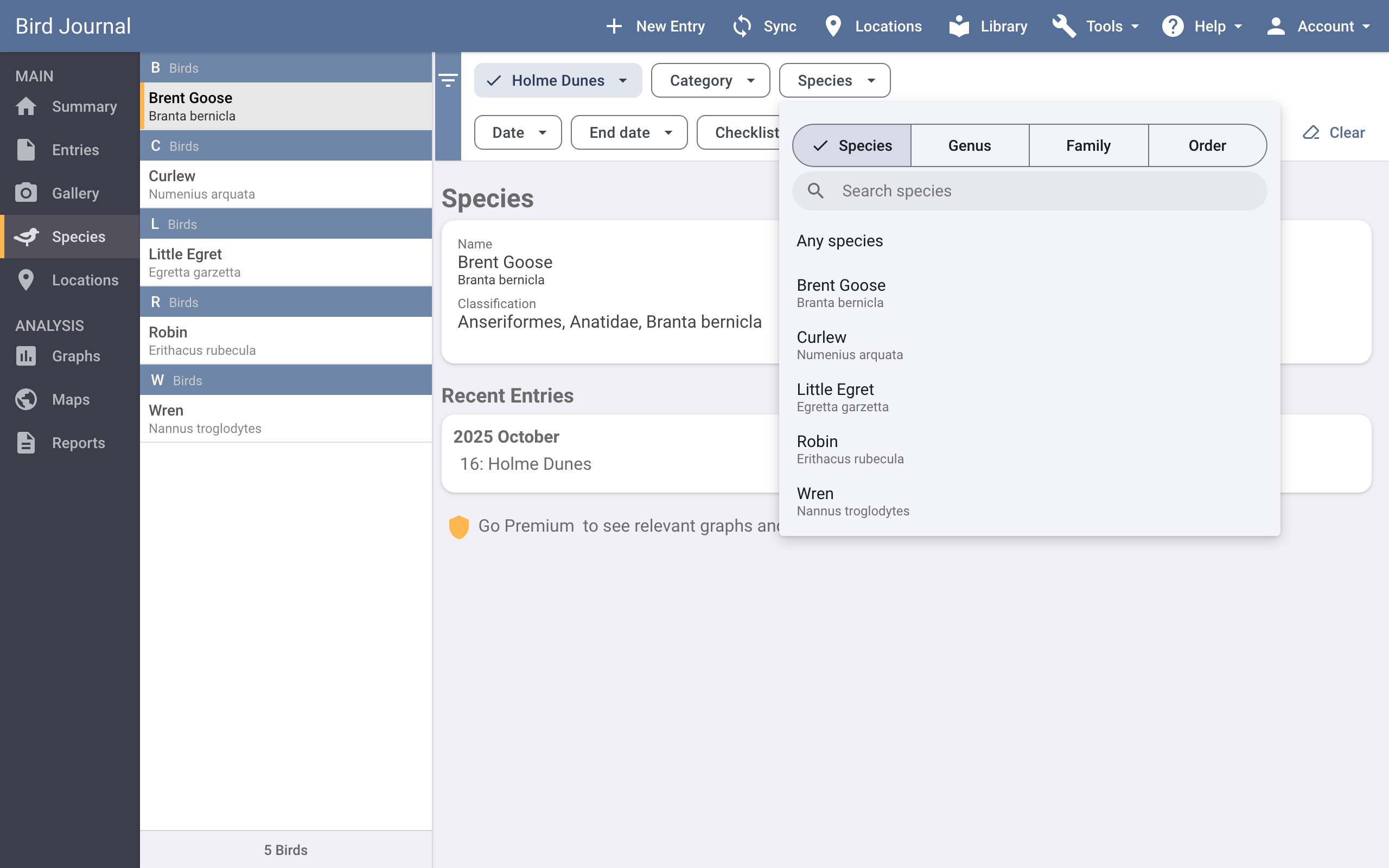
Species searches the taxa in that category. At the top of its picker you choose the rank to filter by — species, genus, family or order — then type to search. So with no category set, the rank on species and G W typed, it finds species in every category whose names begin with G and W.
Checklist
This offers the lists for the places you have recorded in, your own checklists and the taxonomies. On the Species screen, for instance, setting it shows the species you have recorded on one particular list. Type a place you have never recorded in and its lists are offered too, so you can see how your records measure up against a country you are planning to visit.
Custom field
Custom field filters cover the fields you have set up yourself under Settings › Custom Fields, on entries and on observations alike. With an entry field called Wind Direction, for example, you can pull out every visit with a given wind direction: choose the field, then its value.
Fields come in three kinds — Text Box, Checkbox and Drop-down List. Text Box fields are not offered here, because free text has no fixed set of values to choose between.
Media
Where your journal holds more than one kind of media — photos and sounds, say — a Media chip appears on the Gallery and the Media map, to show just one kind.