
Import
How to bring records you already hold in a spreadsheet or another program into Bird Journal, and how the matching step works.
Updated
If your records are already in a digital form, they can usually be imported rather than typed out again. Importing works on every device — Windows, Mac, iPhone, iPad, Android and the web app.
Getting your records into a file
Bird Journal reads CSV, XLS and XLSX files; in the web app, up to 20 MB. If your records are in another program, these articles cover getting them out:
- Exporting records from eBird
- Exporting records from BirdTrack
- Exporting records from Wildlife Recorder
- Importing from AviSys
If your records are in a spreadsheet of your own, rearrange a copy of it to match one of the formats Bird Journal understands. For records in the UK we suggest the Wildlife Recorder format, and elsewhere the eBird one. Wildlife Recorder’s short headings are enough on their own: Common Name, Locality, Date and Count.
Leave a column blank where you do not have the information — Bird Journal is fairly relaxed about what it needs. If you have scientific names but only as a single field, leave the Genus, Species and Subspecies columns empty; matching will fall back to the common name and ask you where it cannot be sure.
Choosing the format and the file
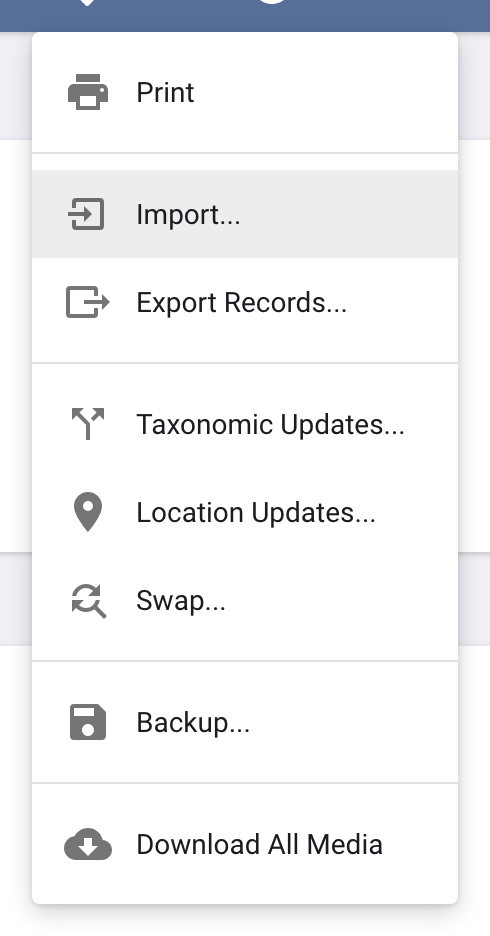
Open Tools ▸ Import. On a phone, Tools is in the ⋮ menu at the top right.
Under Format, choose where your records came from. Each format says what it expects beneath its name — eBird’s Download My Data file, BirdTrack’s Explore my records download, and so on.
If yours is not listed, press More formats in the Library. The Library opens over Import showing the record formats you do not have yet; install the one you want and Import chooses it for you.
Then press Choose… and pick your file. Under Reading the file, check the Preferred taxonomy — Bird Journal reaches for that one first when deciding which species a name means — and the Date format, which can usually be left on Auto. eBird and BirdTrack files set both for themselves.
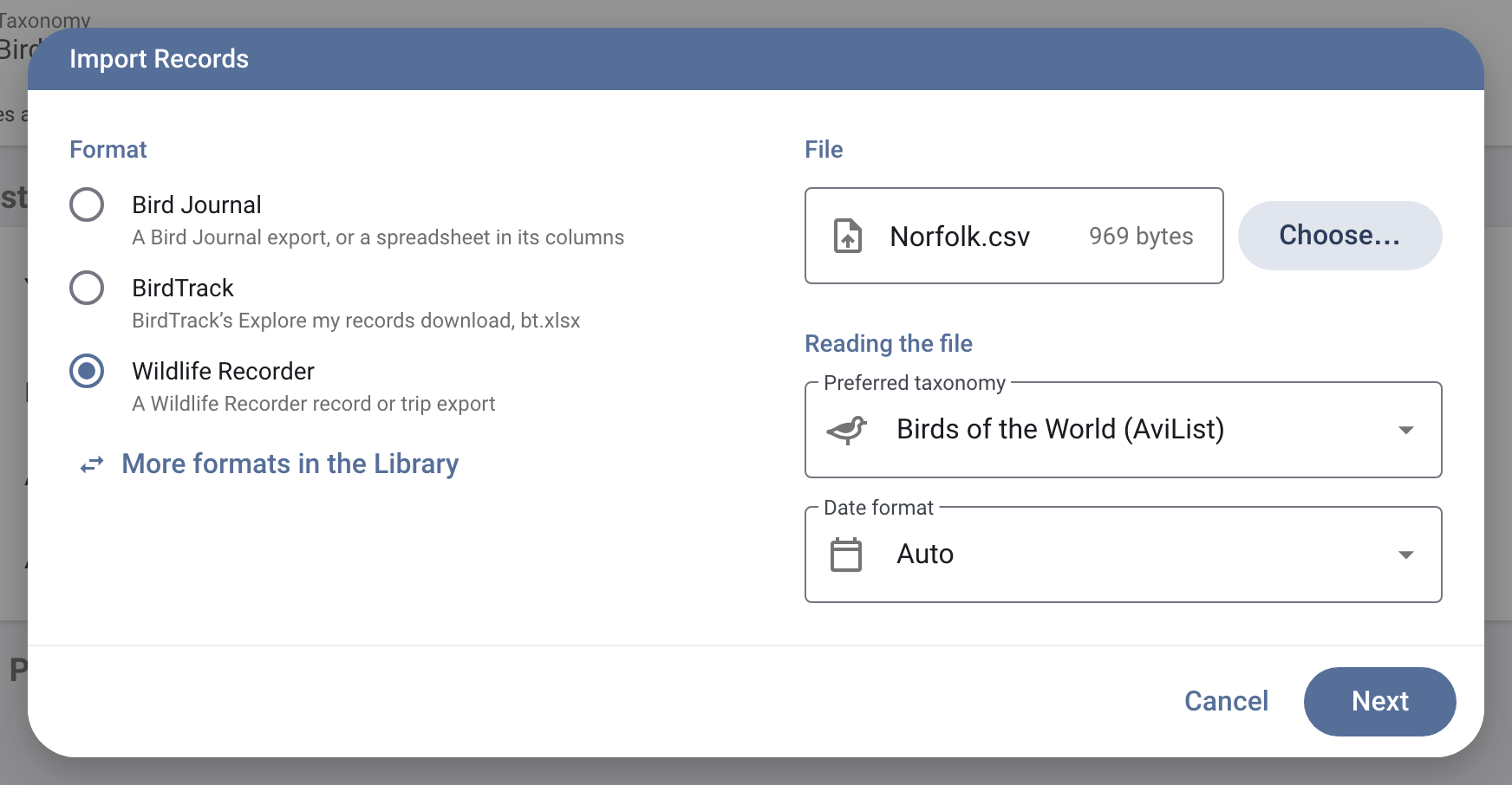
Press Next.
If the file has errors
If any rows cannot be read, nothing is imported and Bird Journal lists the problems instead, grouped by kind — Invalid value for Count, say — with the rows each one affects. Open a group to see its rows.
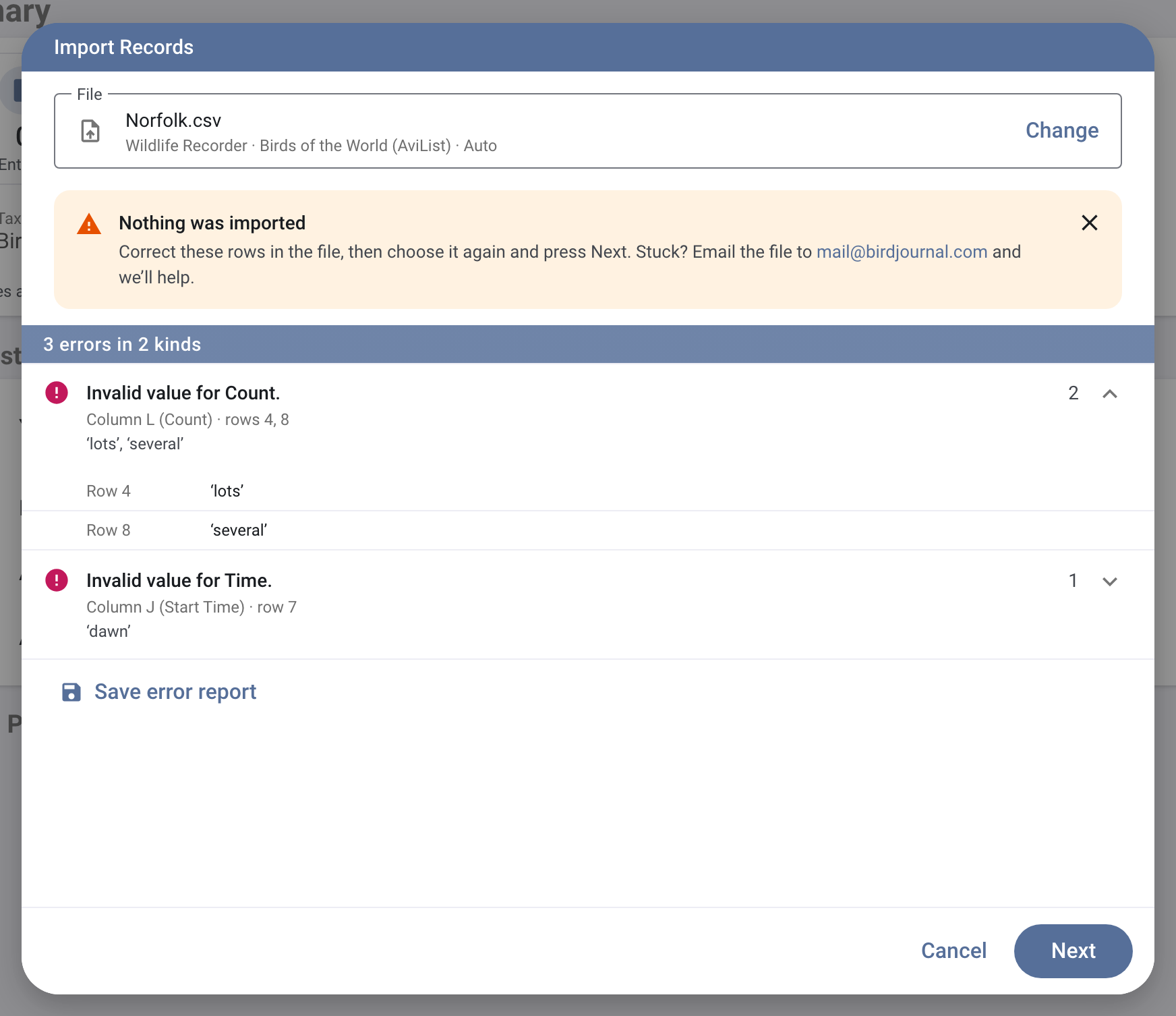
Save error report saves a spreadsheet listing every row and what is wrong with it, which is the easy way to work through a long file.
Put those rows right in your spreadsheet, then press Change, choose the file again and press Next.
If you are stuck, email the file to mail@birdjournal.com and we will help.
Matching
Once the file reads cleanly, a Summary counts what will come in — entries, observations, locations, species and custom fields. For eBird and BirdTrack files it also says which taxonomy your records will be in.
Bird Journal matches the names in your file against the locations, species and custom fields in your journal, and does as much of it as it safely can on its own. What is left is what it cannot decide for you — Cambridge in a file might be the one in England or the one in Massachusetts. Those items are listed, and Import waits until every one is matched. Each gets a tick as you settle it, and Next item takes you to the next one still to do.
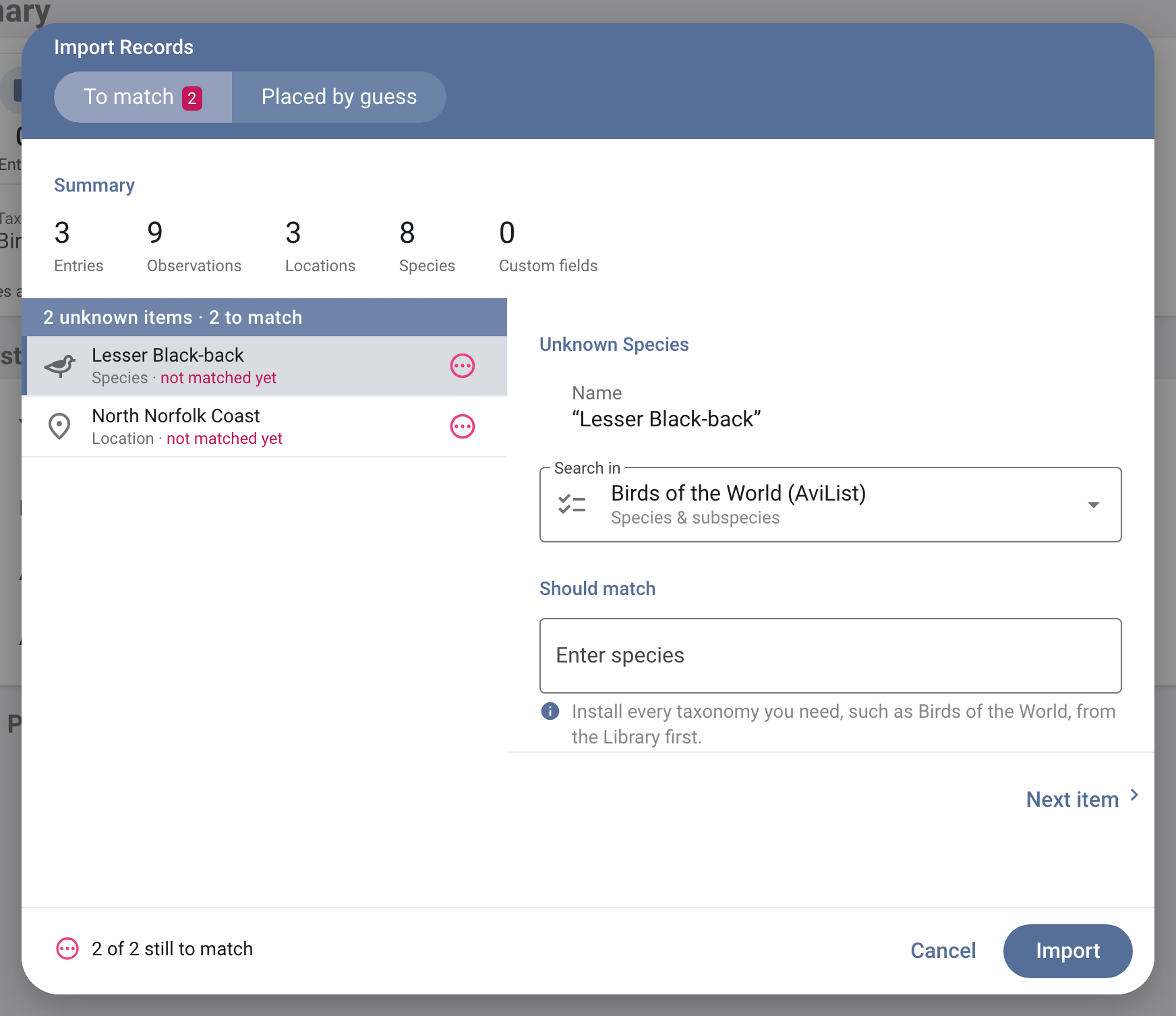
- Species must be matched to a species Bird Journal already knows, so install every taxonomy you need from the Library first — Birds of the World, for instance. Type into Enter species; Search in chooses which list or taxonomy to search. If the library genuinely lacks something, you can create a custom taxonomy for it.
- Locations can be matched to an Existing location, or created as a New location, within a parent — the county or state it sits in — so that it lands in the right place in your list. Match several as new… creates a batch of them at once.
- Custom fields can be matched to an existing one, ignored, or created. When creating one, pick the right type — Text Box, Checkbox or Drop-down List — and whether it belongs to each entry or to each observation. A field whose value differs from bird to bird belongs on the observation; one that describes the whole visit belongs on the entry. It is worth a moment’s thought, as it is the sort of thing that is annoying to change afterwards.
If everything matched on its own, Bird Journal says so and you can go straight on.
Locations placed by guess
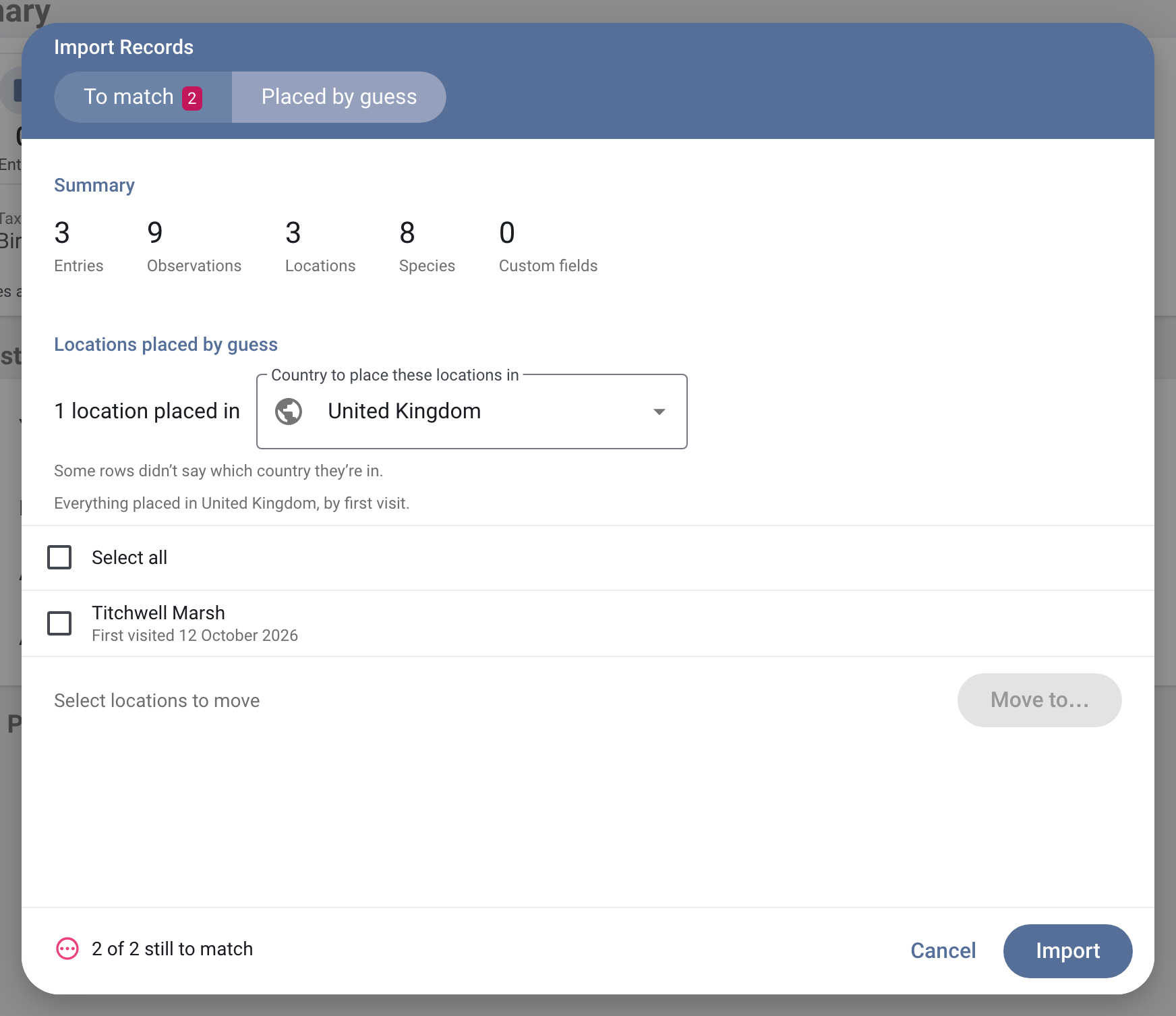
When some rows do not say which country they are in, their locations go in your own country, under Locations placed by guess — a Placed by guess tab beside To match on a wide screen, or a section of its own on a phone. You can choose another country for them all.
Where the species recorded at a place suggest it is somewhere else — a holiday site, say — it is listed under May be abroad, already ticked. Untick any that are where Bird Journal put them, and press Move to… to put the rest in the right country. Undo puts one back.
Importing
Press Import. The records go in, the newest entry opens, and they sync to every other device signed in to the same account.
A file imported twice comes in twice, so keep track of what you have already brought in.
If it does not come out as you hoped
There is no undo for an import as a whole. What we can do is reset your account so you can start the import again — email mail@birdjournal.com and we will sort it out.
What is not supported
These eBird features cannot currently be imported:
- The Oiled Birds observation type — eBird’s own import process does not carry all the fields it needs.
- The Breeding Code field.
- The Elevation field.
- Checklists exported with a language other than English set in your eBird preferences. Those downloads are language-specific, which makes them very awkward to read reliably.
For BirdTrack, records of things other than birds cannot yet be imported or exported.
If any of these matter to you, please post it on the ideas board — that is what tells us what to build next.