Enter observations on a phone or tablet
How to start an entry and record what you see in the iPhone, iPad and Android apps, in the field or afterwards.
Updated
Observations live inside entries. An entry is a single visit — a morning at your local patch, a week away, a glance out of the kitchen window — and it holds as much or as little detail as you care to record.
This article covers the input screen in the iPhone, iPad and Android apps. On Windows, Mac and the web app, see Enter observations on a computer.
Starting an entry
Tap + (New Entry) at the top of the screen. Before the input screen opens, Bird Journal asks:
- Live Input — on when you are recording as you go. Each bird you add is stamped with the time and your position, the entry’s times follow the clock, and your route is recorded. Turn it off to add an outing from earlier. It is offered only for today’s date.
- Date — today unless you change it.
- Country and Location — where you are. With Live Input on, the places Nearby are offered first, then your Recent ones and others in the country; type to search the rest. A place that is not there yet can be made on the spot with Create location, filed by default in the area nearest you.
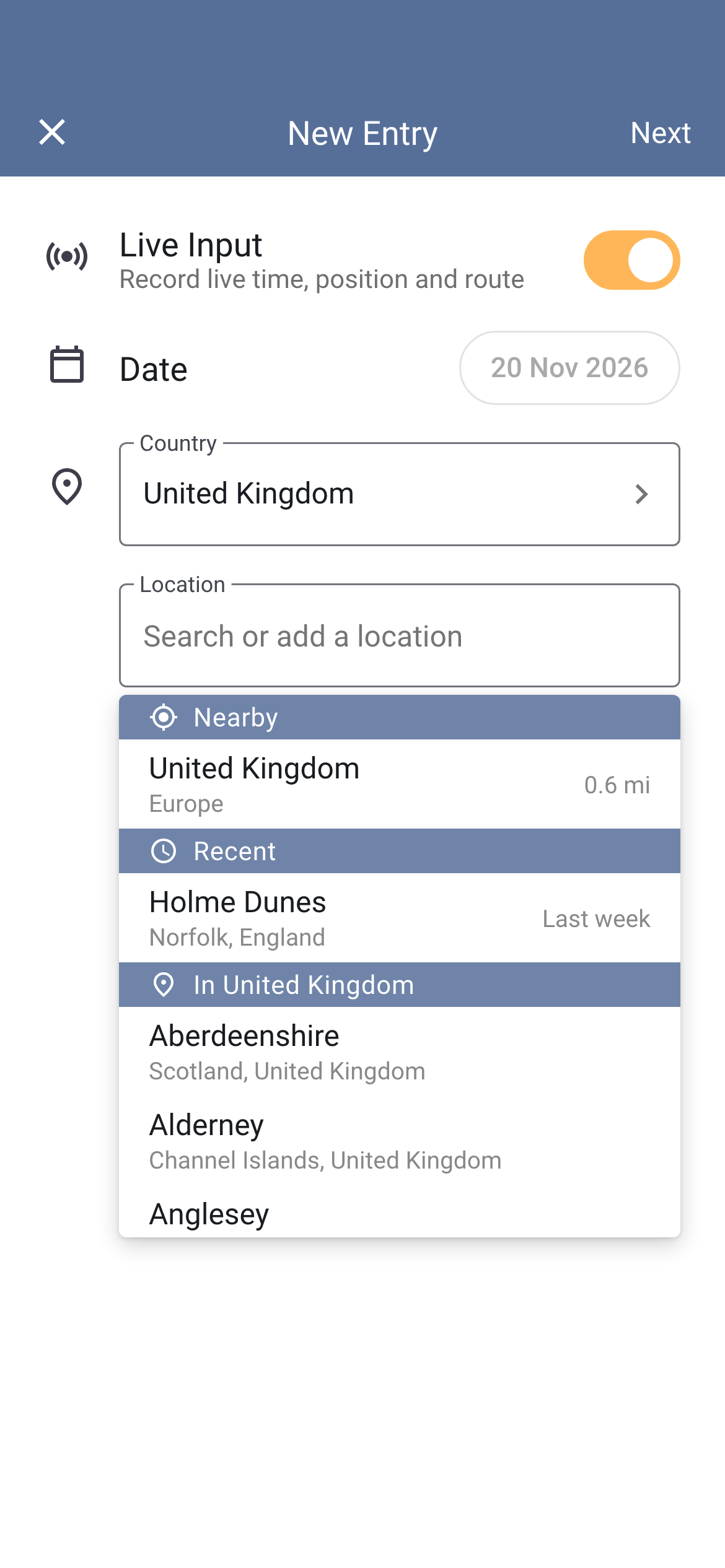
Then tap Next.
Choosing the list
The input screen opens on the list of birds for where you are. Its name sits above the list: tap it to choose another checklist or taxonomy. Those offered are the ones relevant to the location.
The ⚙ beside it opens the checklist options:
- List — Checklist lists every bird on the list, the ones you have recorded marked; Observations lists only what you have recorded.
- Show — species only, species and subspecies, or species with codes.
- Likely only — narrows the list to birds already recorded at the place in Seen before at.
- Naming and Ordering — local or scientific names, in alphabetical or taxonomic order.
- Counts — Open automatically opens the count as soon as you open an observation.
Your choices are remembered.
Recording a bird
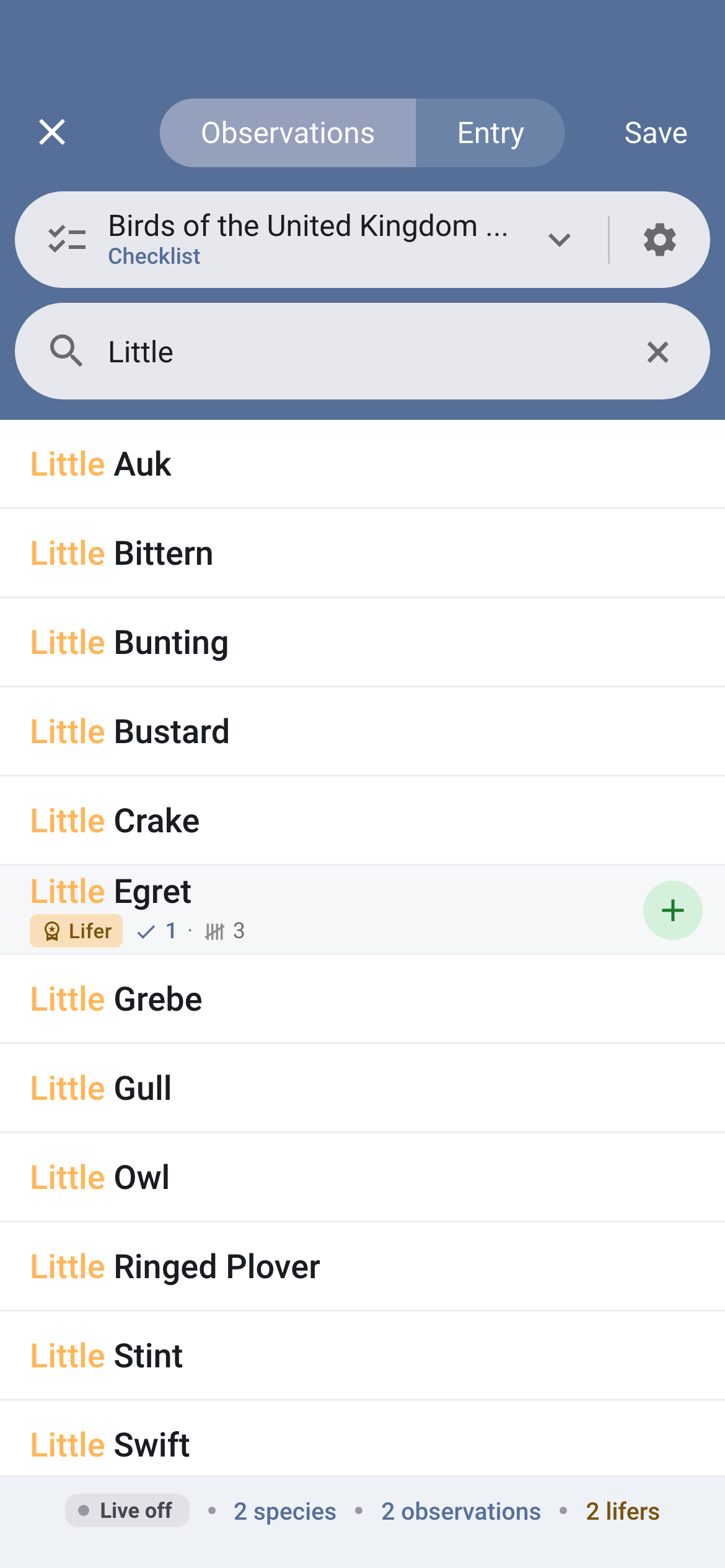
Search the list or scroll it, then:
- Tap a bird to record it and open it, to add its details.
- Hold a bird to record it in one go, without opening it — the quickest way through a busy morning.
Once a bird is recorded its row shows what you have recorded for it, and a + beside it adds another observation of the same species, such as a second flock later in the walk. A bird new to your list for life or for the year wears a Lifer or Year first badge, and the bar at the foot of the screen counts the species and observations so far.
An observation’s details
Tap a recorded bird to open it. Every field is optional:
- Count — roll the wheels to the number. The qualifier wheel beside them makes it approximate (c) or a minimum (+).
- Time and Position — filled in for you under Live Input. Position opens a map: move it until the pin is where the bird was.
- Media — photos, recordings and documents. See Add photos, sounds and documents.
- Notes, and any custom fields you have set up for observations.
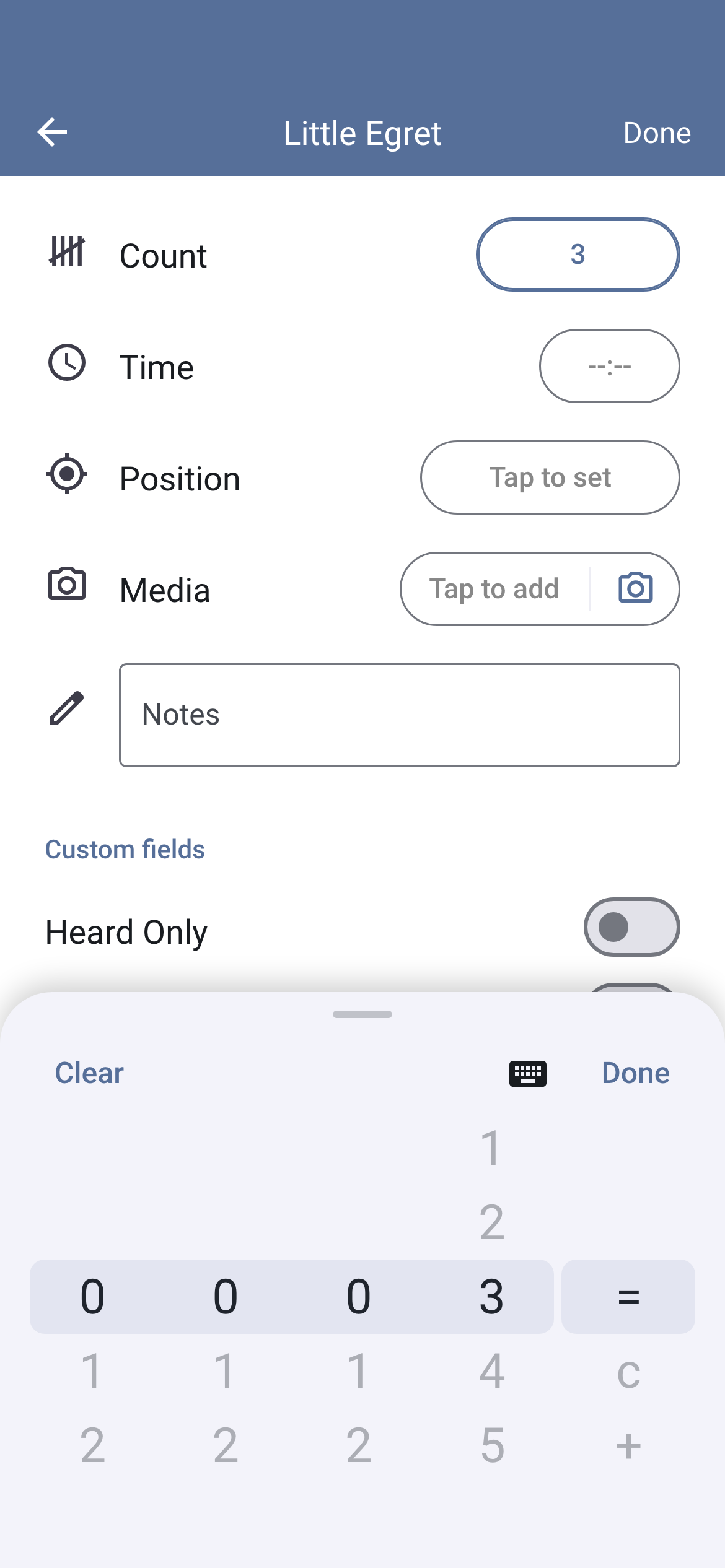
Prefer to type? The keyboard icon on the count, date, time and position pickers swaps them for a field you type into — a count of 167, a grid reference, an exact time.
Done takes you back to the list. Below the details, Change species moves the observation to another bird, keeping its count and notes, and Delete removes it.
The entry’s own details
The Entry tab holds everything that describes the visit rather than a particular bird: the date and times, the location, the weather, media, the route, notes, the Conservation fields where you have turned them on in Settings, and any custom fields you have added for entries.
Your route
With Live Input on, Bird Journal records your route while the input screen is open — the Route row says Recording your route — and saves it with the entry when you tap Save. Effort Distance, in the Conservation fields, fills in from it.
To add a route recorded elsewhere, tap Route and choose a GPX, KML or KMZ file. Open the route again to drag its Start and End handles and trim it to this visit, to replace it from another file, or to remove it.
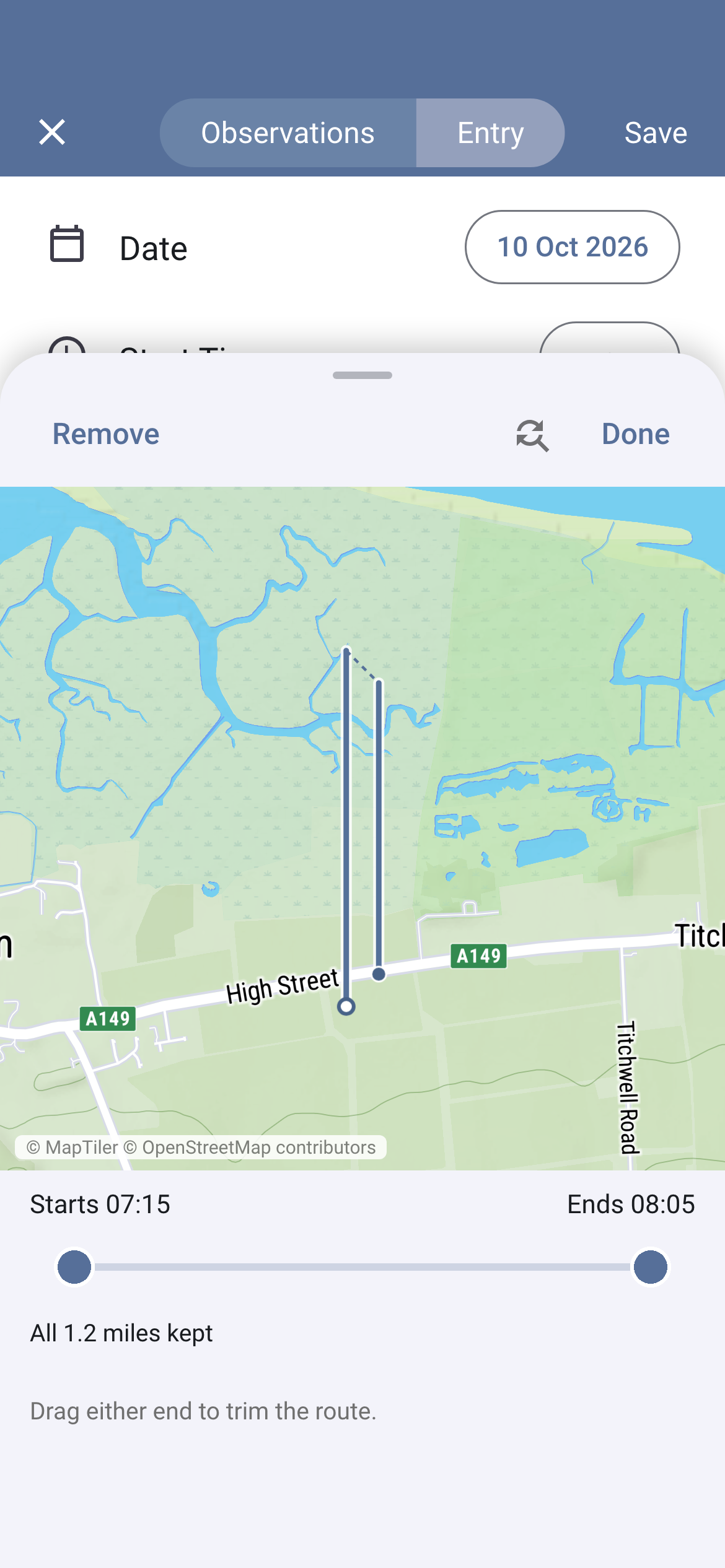
The route is drawn on the entry’s map, and ⋮ › Export Route (GPX) on the entry’s page gives you the file back.
Saving
Tap Save to keep the entry. Close (the ✕ in the corner) leaves without saving, and asks first if you have changed anything.
If the app is closed part-way through an entry, Bird Journal keeps what you had and offers to carry on the next time you open it.