
Taxonomy updates
How to install a taxonomy update, see exactly what changed in the parts of the taxonomy you use, and settle the few species that need a decision from you.
Updated
Taxonomies change. As understanding improves, species are added, removed, renamed, split and rearranged. Bird Journal keeps yours current through the Library, along with your checklists and synonym packs.
Most of an update applies by itself. This article covers installing an update and settling the handful of species that need a decision only you can make.
All of this works the same in Bird Journal on Windows, Mac, iPhone, iPad, Android and the web. On a phone, the screens show as a list you tap through rather than two panels side by side.
Installing an update
When updates are waiting, a count appears on Library. On a phone, Library is in the ⋮ menu.

Open the Library and go to its Updates tab. Each waiting update is listed with its release notes. Press Update All.
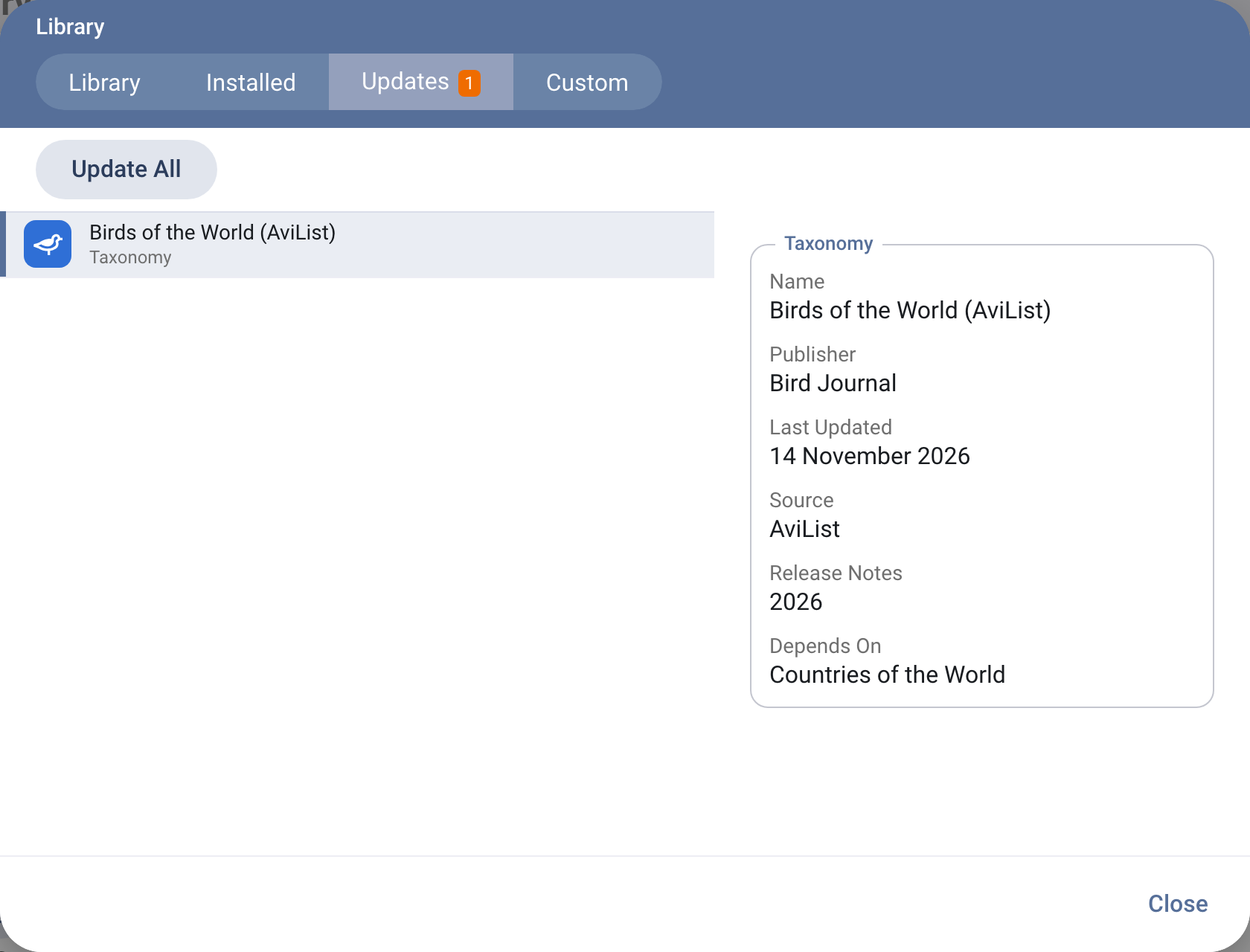
All the updates install together, which takes a few seconds. Your other devices pick them up the next time they sync, so you don’t need to repeat this on each one.
What an update does by itself
Bird Journal applies as much of a change as it can without losing anything you recorded.
Unambiguous changes are made for you:
- A renamed species keeps your records under its new name.
- A subspecies raised to a species with no subspecies of its own simply moves across.
Bird Journal never changes a record into a species that does have subspecies on your behalf, because that would quietly throw away detail you took the trouble to record. It asks you instead.
Species that are no longer in the taxonomy are marked deprecated. They stay in your journal, clearly marked, until you decide what becomes of them. Nothing is deleted behind your back. They are no longer offered when you record.
Seeing what changed
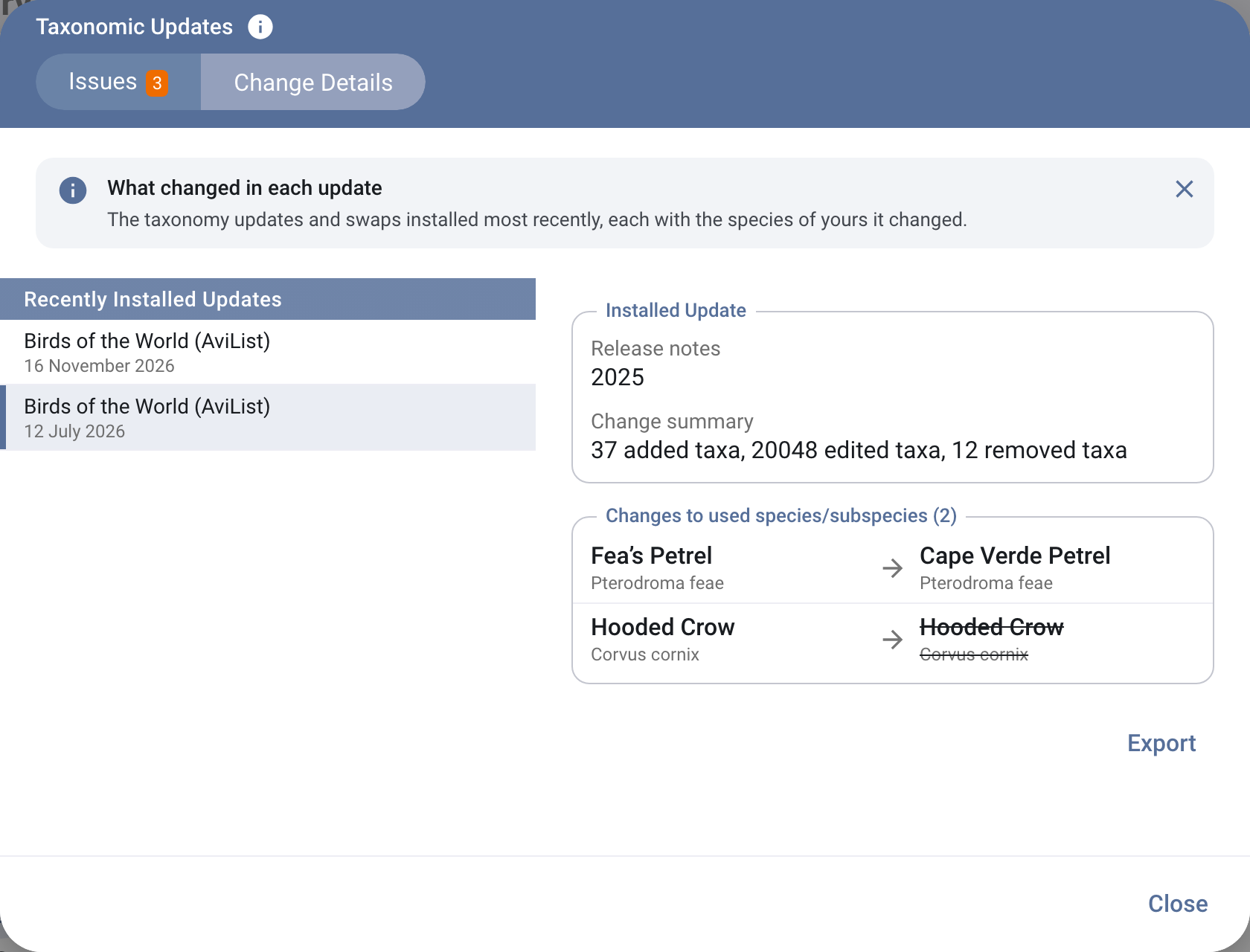
Open Tools ▸ Taxonomic Updates and choose Change Details.
It lists your recently installed updates and swaps. For each one, it shows how the species you use changed: names, splits and the species removed. Export saves the list, which is easier to work through than the screen when there is a lot to review.
Species that need a decision
Where a species has been split, your records often can’t say by themselves which bird you saw. Unless you recorded the subspecies, the record simply isn’t that specific.
A count on Tools shows how many species are waiting on you. It follows your account, so an update installed on one device shows on the others too.

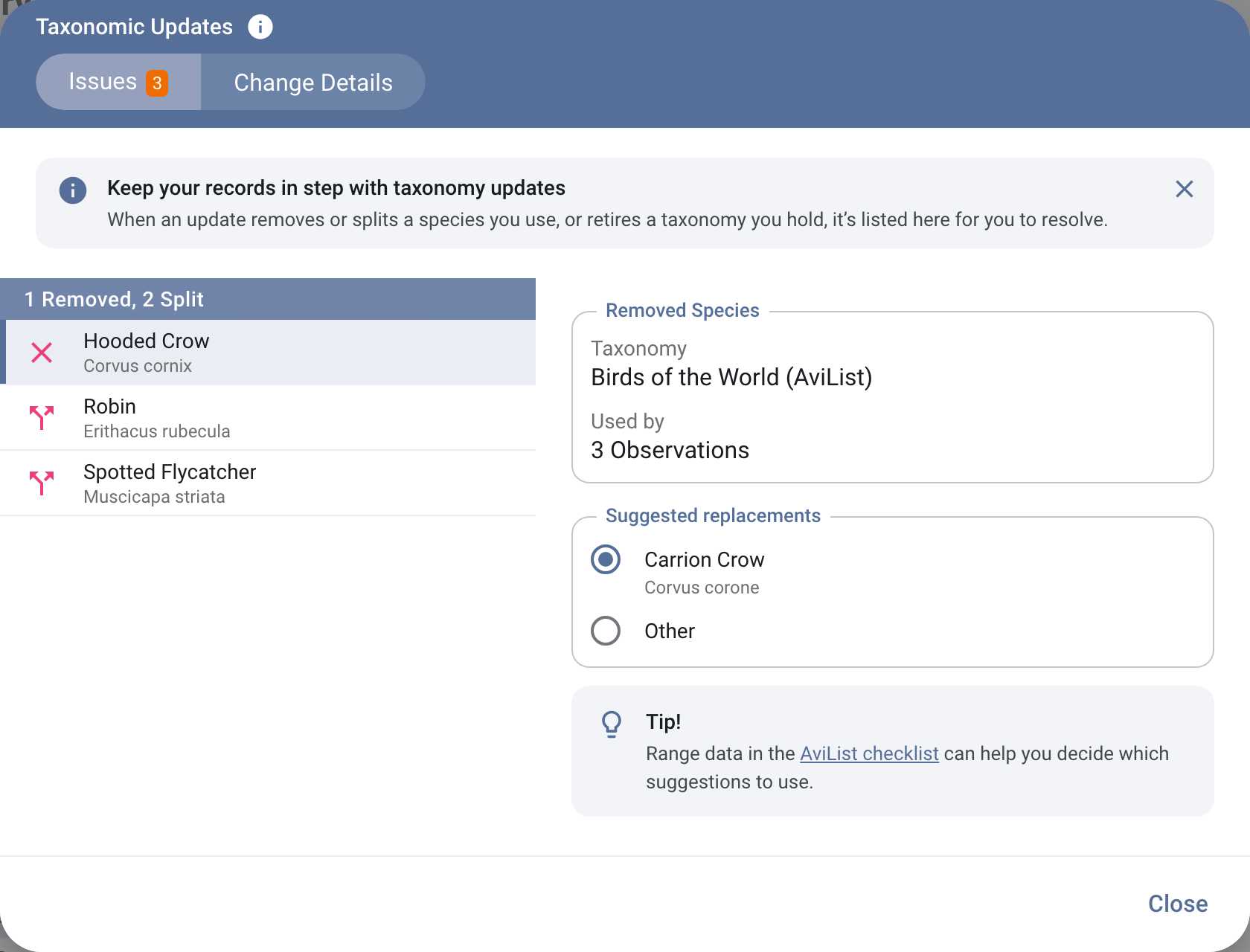
Open Tools ▸ Taxonomic Updates and stay on Issues. Each issue is one of two kinds:
- Removed: the species or subspecies is no longer in the taxonomy. It may have been lumped into another species, or its subspecies may have moved elsewhere.
- Split: the taxonomy now recognises more than one species where it used to recognise one. A subspecies that moves to a different existing species counts as a split too, because the race you saw may no longer belong to the species you recorded.
Selecting an issue shows which taxonomy it came from, how many of your observations use it, and the replacements on offer. Choose one, or Other to pick a species yourself.
Settle removed species first. Left alone, they can make your species count read higher than it should.
Splits are worth reviewing, but they may well not affect your records. A split you have checked and found doesn’t apply can be set aside with Ignore.
The range data published with AviList and Clements can help you choose. Different records of one species may need different answers, depending mostly on where you saw them.
Applying a replacement
Choose a replacement and press Apply Replacement…. This opens Swap with From filled in, To set to your choice, and every observation of the species ticked.
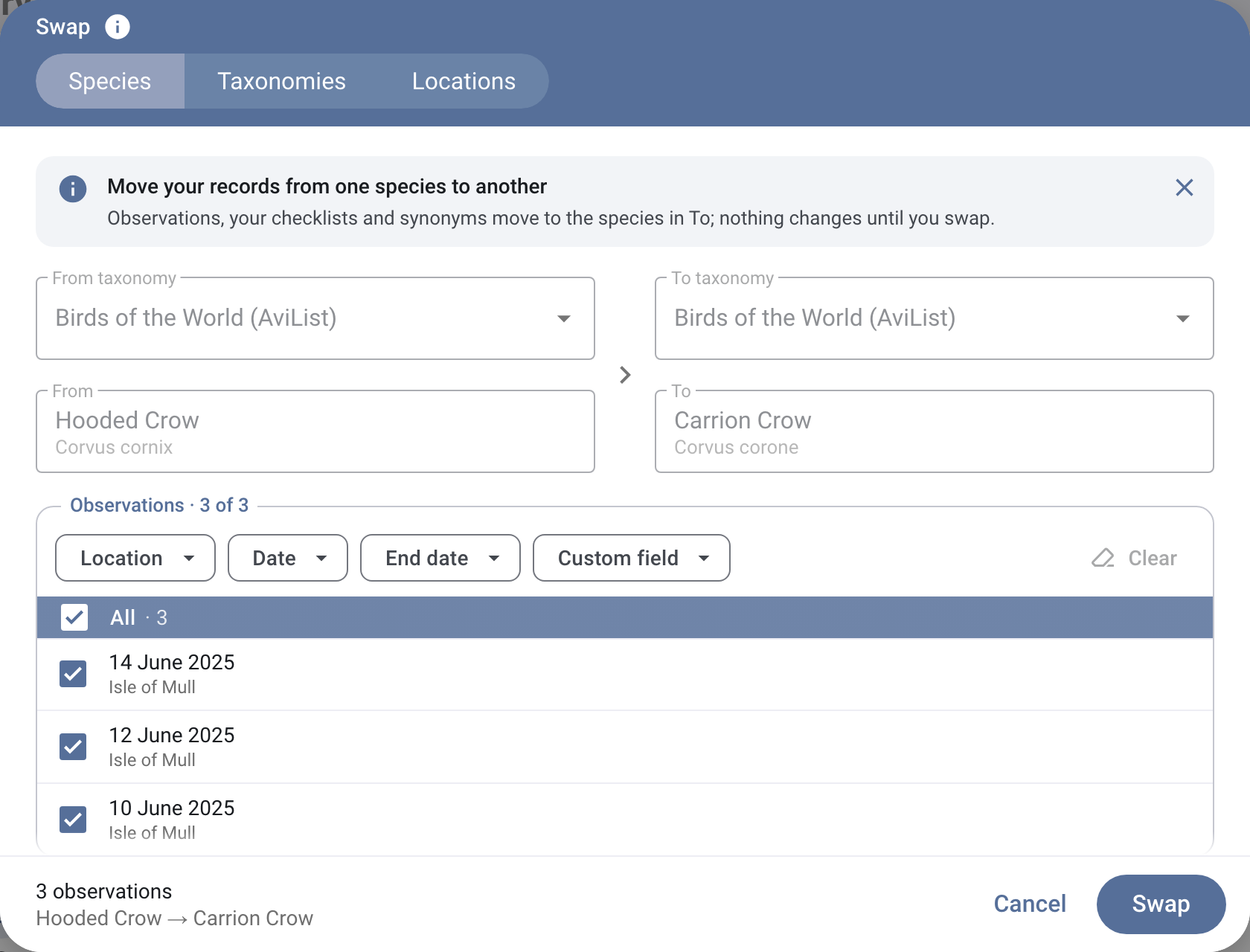
You don’t have to move everything at once. Use the Location and Date chips, or untick observations, to pick out some of your records — those from one country, say — and press Swap. Then choose another replacement for the rest, or, for a split, Ignore the issue if they stay as they are.
Swap also moves the species in checklists and synonym packs you have made yourself. They are listed in their own ticked sections. When Swap closes you return to Taxonomic Updates, with the issue gone once nothing is left to settle, or Taxonomic Updates closes too when no issues remain. Move records with Swap covers Swap in full.
When a taxonomy is retired
Some older regional taxonomies are being retired in favour of Birds of the World (AviList). A retired taxonomy gets no further updates. If your records use one, it appears in Taxonomic Updates under Retired taxonomy, with the taxonomy that replaces it.
- Press Migrate…. Swap opens on its Taxonomies tab, with every species paired with its partner in the new taxonomy. The clear majority move in one step.
- Any species that were split are left listed beneath the retired taxonomy. Press Review Splits and choose for each when you’re ready.
- Once nothing in your journal uses the old taxonomy, press Uninstall… to finish.