
Create a checklist
What a checklist is, how it differs from a taxonomy, and how to build one of your own for a patch or a trip.
Updated
A taxonomy defines the species themselves: their names, and how they relate to one another. A checklist defines nothing new. It picks out, from a taxonomy, the species that occur somewhere. That makes a checklist far easier to build and keep current, and every improvement to its taxonomy reaches it for free. Taxonomies, checklists and names explains how they fit together.
The Library already has a checklist for every country, through its checklist packs, and packs with a list for each region of a country, such as every county of the United Kingdom. Each list is offered when you record somewhere it covers.
Do you need one?
Often not. If you want a short list of the birds you are likely to see, turn on Likely only in the checklist options while recording. The list narrows to species you have recorded nearby, with nothing to set up.
A checklist of your own earns its keep when that isn’t enough. For example, you might be planning a trip somewhere new and want the right species to hand before you have any records there. Or you might visit one patch so often that a hand-picked list of its regulars will speed up your recording.
Starting one
You can do this on any device, and a free account is enough.
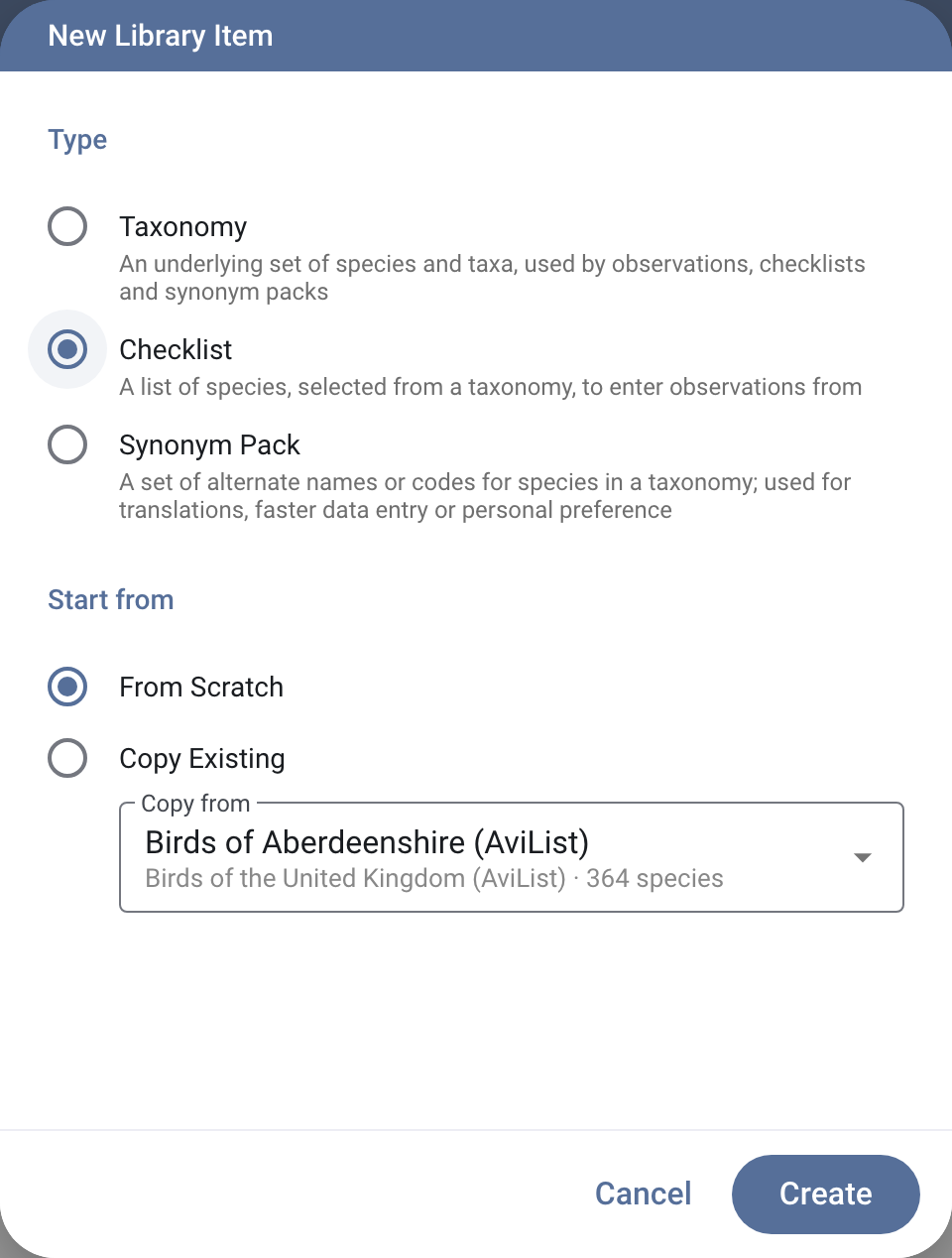
- Open the Library and go to its Custom tab.
- Press New Item and choose Checklist.
- Under Start from, choose From Scratch, or Copy Existing to begin from a checklist already installed. Copy Existing also offers the lists inside your checklist packs, so you can start from your county’s list and trim it.
- Press Create, and the checklist editor opens.
Building it
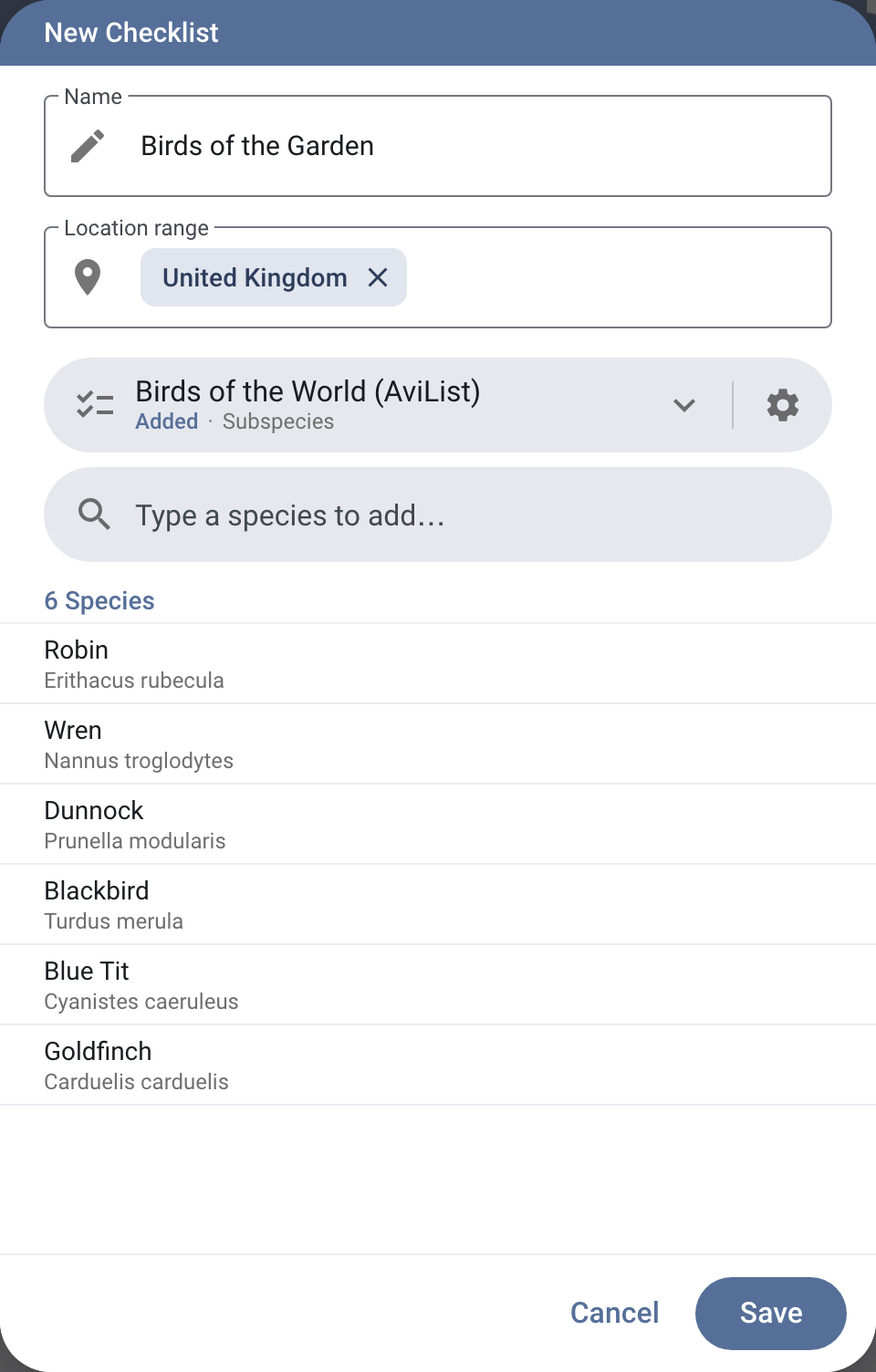
Name it. Something like Birds of the Garden or Moths of Cambridge does nicely. It can’t share a name with something already in the Library.
Give it a location range. This tells Bird Journal where the checklist applies, so it is offered when you record there and stays out of the way elsewhere. Add more than one place if it covers several.
Choose the list to add from. The checklist field above the species shows the list your species come from. Tap it to choose another list or a whole taxonomy.
Add the species. Type into the species field and choose from the matches. Each species you choose joins your list, and the field clears ready for the next one.
The ⚙ beside the list sets the naming and whether subspecies are shown, and switches between two views:
- Added shows only the species you have added, and you type to add more.
- Full list shows every species in the list you are adding from, and you tick the ones you want.
To take a species out, press the bin on its row, or select the row and press Delete. If you change your mind, the message that follows has an Undo.
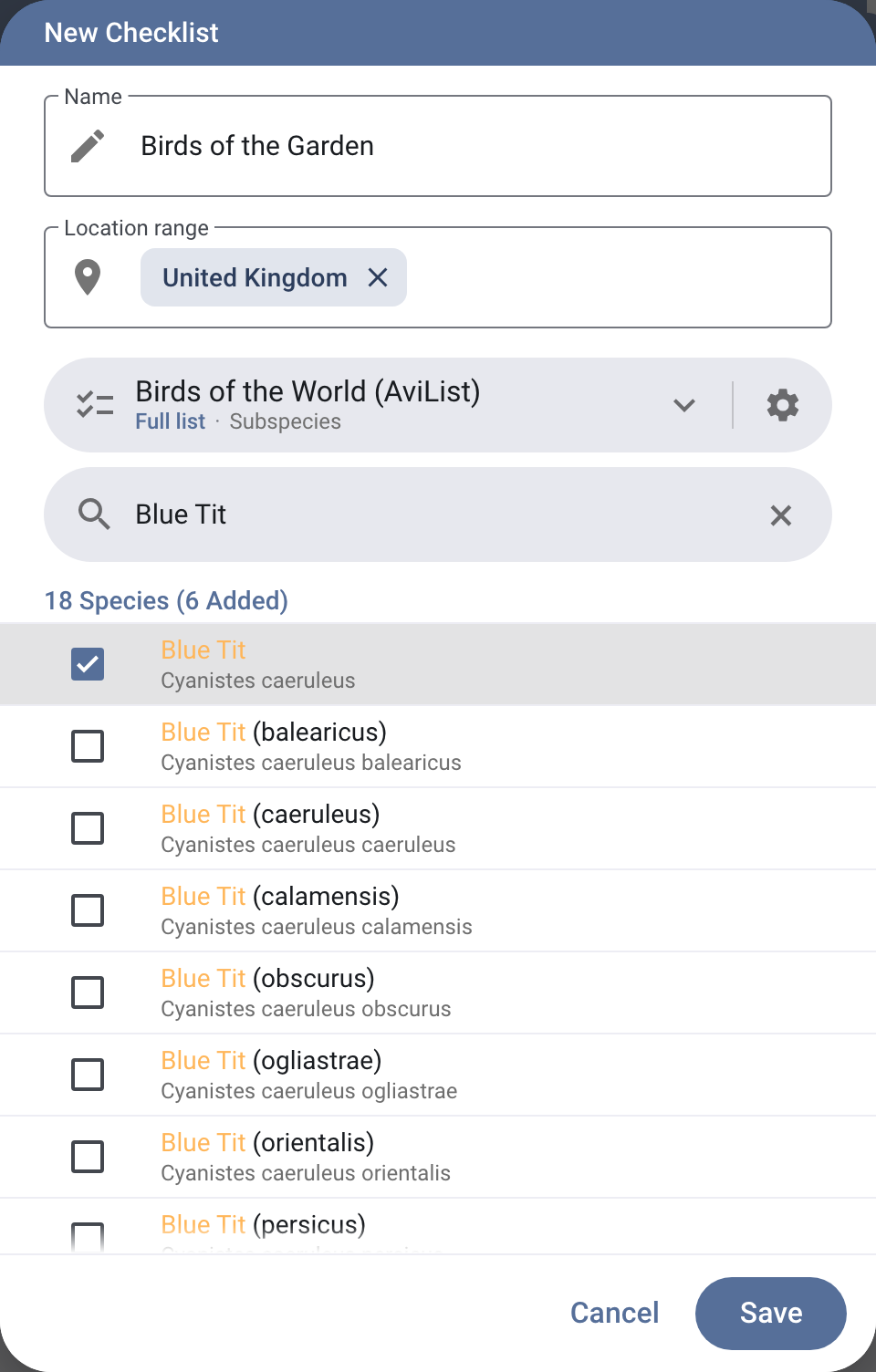
Press Save when you’re happy. The checklist is then offered whenever you record at a place within its range. To leave without saving, press Cancel (✕ on a phone) and choose Discard.
Changing it later
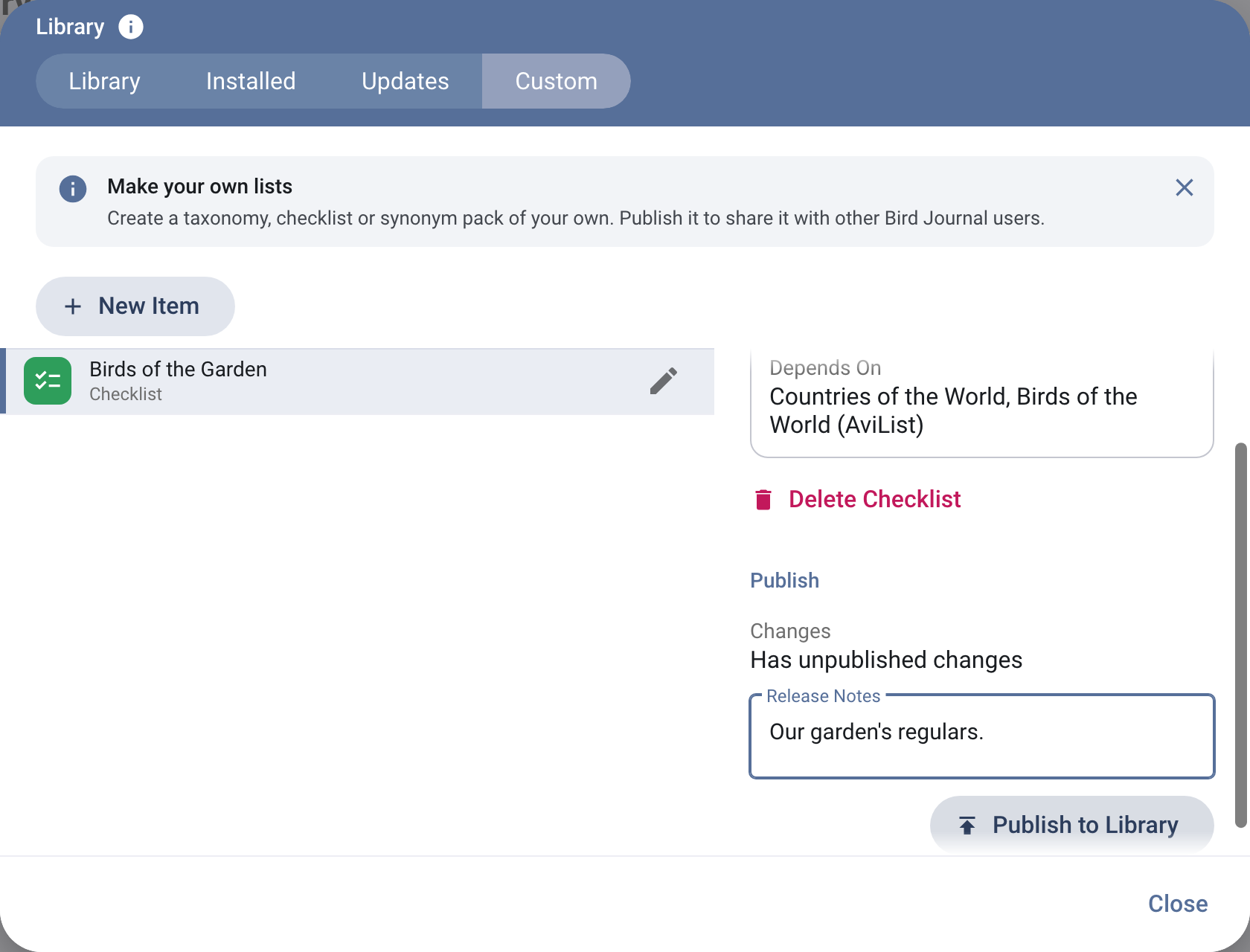
Your checklists stay on the Custom tab. Select one and press Edit to change it, or Delete Checklist to remove it.
Sharing it
If you have made something other people would find useful, please consider sharing it. Select the checklist on the Custom tab, write a line of release notes and press Publish to Library.
There are a few things worth getting right first. See the library publishing guidelines.